

Getting Started
Your dashboard tour
A guided walk through every menu item in the seller dashboard, what each number on the home screen means, and which screens you will actually open every day.
This is the screen you land on every time you sign in. It answers two questions: is my shop healthy, and are the ads bringing back more than they cost?
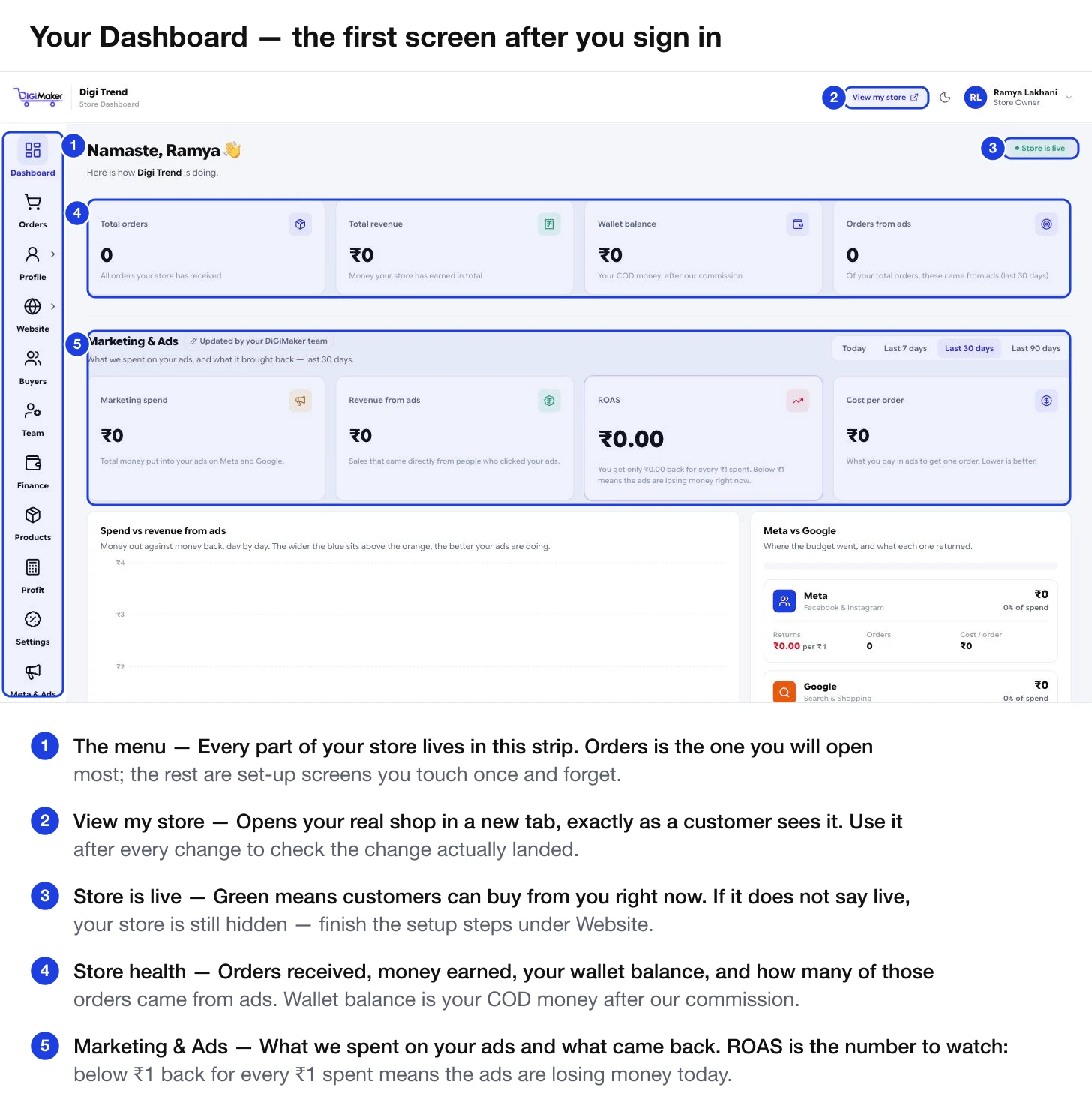
The four store-health numbers
These four cards sit at the top and cover the whole life of your store, not just this month.
| Card | What it counts |
|---|---|
| Total orders | Every order your shop has ever received, in any state — including ones later cancelled or returned. |
| Total revenue | The money your store has earned in total. |
| Wallet balance | Your COD money after our commission has been taken out. This is the number that matters for cash flow. |
| Orders from ads | How many of your orders in the last 30 days came from someone clicking an ad. |
The Marketing & Ads panel
Everything below the health cards is about the ads the DiGiMaker marketing team runs for you. You can switch the whole panel between Today, Last 7 days, Last 30 days and Last 90 days.
Return On Ad Spend: how many rupees come back for every ₹1 spent. Below ₹1 means the ads are losing money right now. If it sits below ₹1 for more than a week, that is a conversation to have with your marketing contact.
What went in, and what came directly back from people who clicked. The chart underneath plots them day by day — the wider the blue sits above the orange, the better the ads are doing.
What you pay in ads to win one order. Lower is better. Compare it against your profit per order in the Profit calculator — if cost per order is higher than your margin, every ad-driven sale loses you money.
Where the budget went and what each platform returned, with clicks, CTR, cost-per-click and reach underneath. The summary line names the better performer so the team can shift budget towards it.
A funnel: Clicks → Add to Cart → Checkout → Purchase. The panel names your biggest drop-off. Fixing that one step lifts every number below it — usually it is Clicks → Add to Cart, which means the product page needs better photos or a clearer price.
An order only earns you money once it is actually delivered. This splits ad-driven orders into Delivered, On the way, and Returned (RTO). A high RTO rate quietly eats your profit — you paid for the ad and the shipping, and got nothing back.
The menu, top to bottom
Every part of your store is in the strip down the left.
| Menu item | What it does | How often you’ll open it |
|---|---|---|
| Dashboard | This screen — store health and ad performance. | Daily |
| Orders | Accept, pack and dispatch customer orders. | Many times a day |
| Profile | Your profile, business & GST details, bank details. | Once at setup |
| Website | Domain, setup status, template, builder, analysis. | During setup, then occasionally |
| Buyers | Everyone who has signed up on your shop. | Weekly |
| Team | Staff logins and what each person can see. | Once, then when staff change |
| Finance | Wallet balance, statement, payout history. | Weekly |
| Products | Categories, products, inventory. | Often at first, then as stock changes |
| Profit | Work out your real margin before scaling ads. | Before any spending decision |
| Settings | Delivery charges, GST, payment methods, coupons, pickup addresses. | Once at setup, then when offers change |
| Meta & Ads | Connect your Facebook / Instagram account. | Once |
| Shipping | Rate calculator and return rates. | Before dispatching unusual parcels |
The top bar
- Your store name on the left, with “Store Dashboard” underneath — confirms which store you are in.
- View my store opens your live shop in a new tab. Use it constantly while setting up.
- The moon icon switches between light and dark mode.
- Your name and role on the right opens the account menu and sign-out.
- “Store is live” in green means customers can buy right now. If it does not say that, finish the steps in Going live.