

Orders & Shipping
Managing orders
The six order stages from To Accept to Completed, what to do at each one, finding an order fast, and spotting duplicate or risky orders before you ship.
This is the screen you will open more than any other. Every order — online or Cash on Delivery — lands here the moment a buyer checks out.
Where to find it: menu → Orders.
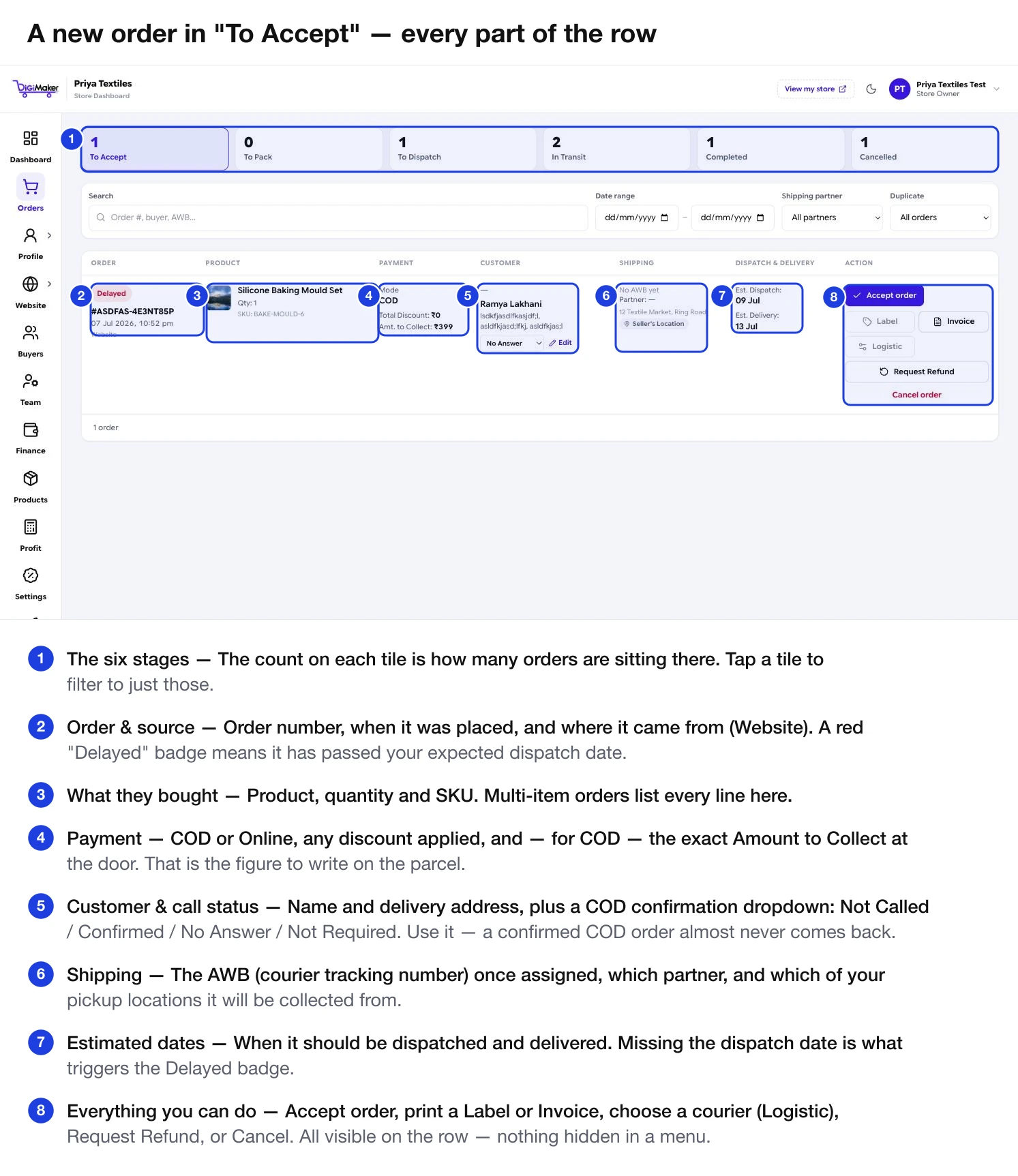
The six stages
| Stage | What it means | What you do |
|---|---|---|
| To Accept | A new order nobody has looked at yet. | Check it is genuine, then accept it. |
| To Pack | Accepted, not yet packed. | Pack the items. |
| To Dispatch | Packed, waiting on the courier. | Book the pickup and print the label. |
| In Transit | With the courier. | Nothing — track it. |
| Completed | Delivered. | Nothing. This is where money becomes real. |
| Cancelled | Cancelled by you or the buyer. | Nothing. |
The order lifecycle, step by step
The order arrives in To Accept
Open it. Check the items, the address, the phone number and how it was paid.
Check for the obvious problems first
Is the address complete enough for a courier to find? Is the phone number real? Is this the same person ordering the same thing twice by mistake? Use the Duplicate filter for this.
Accept it
It moves to To Pack. If something is wrong, call the buyer before accepting rather than after packing.
Pack it
Then move it to To Dispatch. Weigh and measure the packed parcel if you have not already — that is what the courier bills on.
Book the courier
An AWB tracking number is generated and flows back into the order automatically. Print the label.
Hand it over
The order moves to In Transit and the buyer can track it.
It is delivered
The order reaches Completed. For COD, this is the point the cash starts its journey back to you — see Wallet & commission.
Finding an order
The search box takes an order number, a buyer name, or an AWB — the courier’s tracking number. That last one matters when a buyer calls quoting a tracking number from an SMS.
Beyond search:
- Date range — narrow to a specific period.
- Shipping partner — filter to one courier. Useful when a particular courier is having a bad week in your region.
- Duplicate — three options worth knowing:
- Possible duplicates — the same buyer ordering the same thing twice. Usually a double tap; occasionally deliberate. Worth one phone call before you ship both.
- First-time customers — nobody who has bought from you before. On a COD order from a new customer, a confirmation call measurably reduces refused deliveries.
- All orders — no filter.
What the columns show
| Column | What is in it |
|---|---|
| Order | Number, date, source (Website), and the AWB once booked. A red Delayed badge means it has passed its expected dispatch date. |
| Product | Item, quantity and SKU. Multi-item orders list every line. |
| Payment | COD or Online, discount applied, and for COD the exact Amount to Collect at the door. |
| Customer | Name, delivery address, and the COD call-status dropdown — Not Called / Confirmed / No Answer / Not Required. |
| Shipping | AWB, courier partner, the charge it cost you, and which pickup location it leaves from. |
| Dispatch & Delivery | Estimated dispatch and delivery dates. |
| Action | Every button — Accept, Label, Invoice, Logistic, Track, Request Refund, Cancel. |
Every button on the row is explained step by step in Working an order.
The later stages
In Transit adds the courier’s charge and a Track link, and swaps the main button to Mark delivered.
Completed shows a green Delivered badge; only Invoice, Logistic and Request Refund stay available.
Cancelled shows a red badge. Buyers can cancel themselves if you allow it, within the window you set in Delivery charges & GST. If money had already been taken, raise a refund — see Refunds.