
Your Website
Building your storefront
The whole website build in order — pick a template, set your brand, write your banner, build your homepage, load products, then publish.
Your storefront is your own branded shop — no marketplace logo, no competing listings next to yours. This page is the map; each step links to the page that covers it in detail.
The order to do it in
Pick a template
Six designs, each built for a trade. Website → Theme / Template Selection. Changing it later swaps the layout and leaves your products untouched. See Themes & templates.
Set your brand identity
Logo, favicon, colours, font and button shape. Website → Website Builder → Brand Identity. A live preview shows how it reads before you save. See Brand identity.
Write your hero banner
The big banner at the very top of your shop — the first thing a shopper sees. Website Builder → Hero Section. See Hero & homepage.
Build the rest of the homepage
Stack sections — categories, product grids, testimonials. Website Builder → Home Sections. If you add nothing, your template’s built-in layout is used, which is a perfectly good starting point.
Create your categories
Every product must sit under one, so do these first. See Categories.
Load your products
One at a time through the 4-step form, or all at once from a spreadsheet. See Adding products and Importing your catalogue.
Set the shop's rules
Delivery charge, GST display, payment methods, pickup addresses. See Delivery charges & GST.
Preview, then publish
Check it on a phone as well as a laptop — most of your buyers are on a phone. See Going live.
What your customer ends up seeing
Every part of the finished shop traces back to a screen in your dashboard.
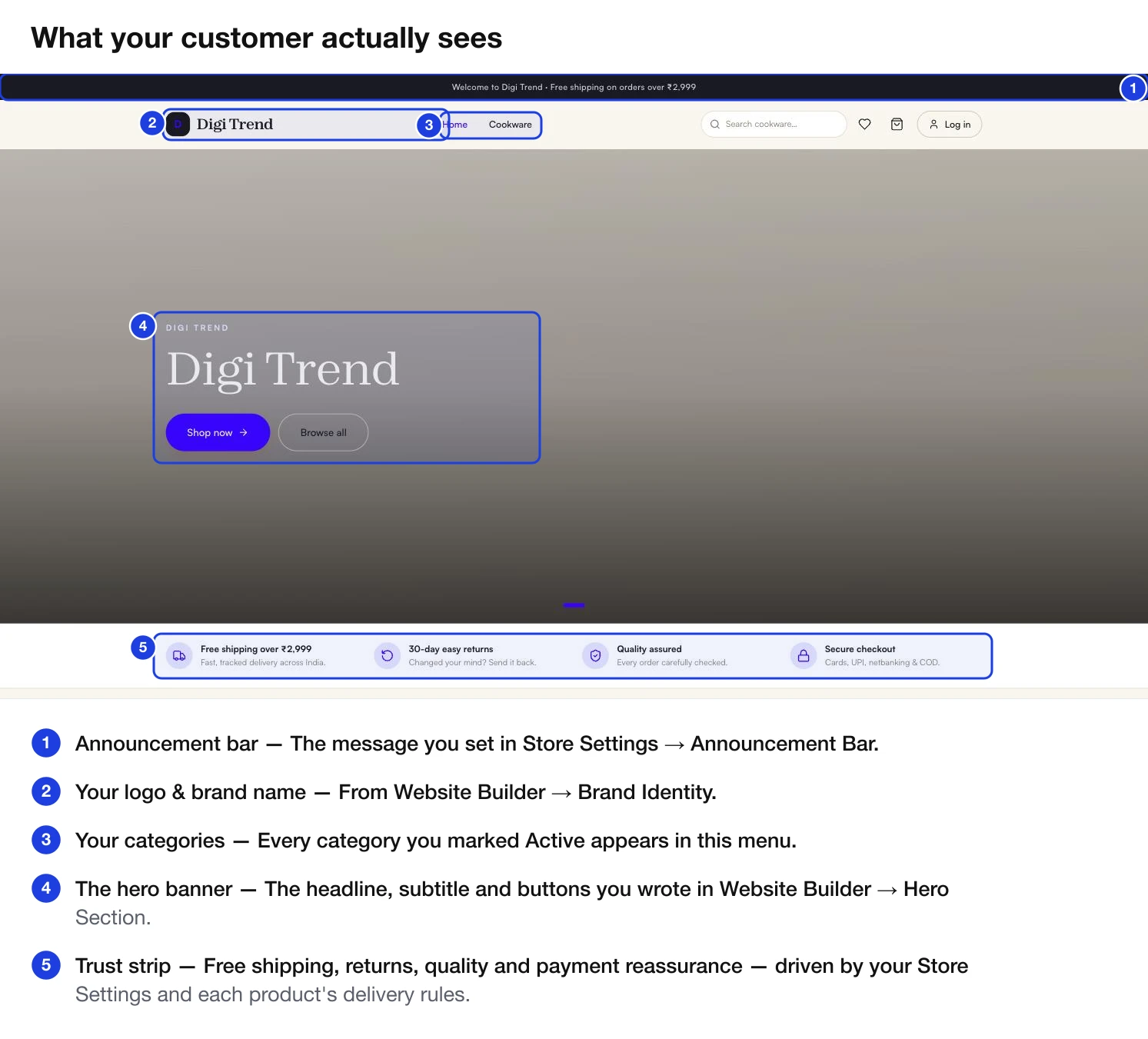
| What the buyer sees | Where you set it |
|---|---|
| The slim message across the top | Announcement bar |
| Your logo and brand name | Brand identity |
| The category menu | Categories — anything marked Active |
| The big banner and its buttons | Hero & homepage |
| Free shipping / returns / payment reassurance | Store settings and each product’s delivery rules |
| Product cards, prices, photos | Adding products |
| Policy pages in the footer | Business & GST details |
The three builder tabs
Logo, favicon, tagline, five brand colours, font style and button shape. This is the layer that makes the same template look like your shop rather than a demo.
One or more banner slides, each with an image, an eyebrow label, a headline, a subtitle and a button. Add several and they rotate automatically.
The blocks below the hero — a banner, a row of categories, a grid of products, buyer testimonials. Add, remove and reorder freely.