

Your Business
Team & staff logins
Give each staff member their own login, choose exactly what they can see and do, and reuse a permission pattern with access roles.
The moment more than one person touches your store, they each need their own login. Sharing yours means nobody can tell who changed a price, and everybody can see your bank details.
Where to find it: menu → Team.
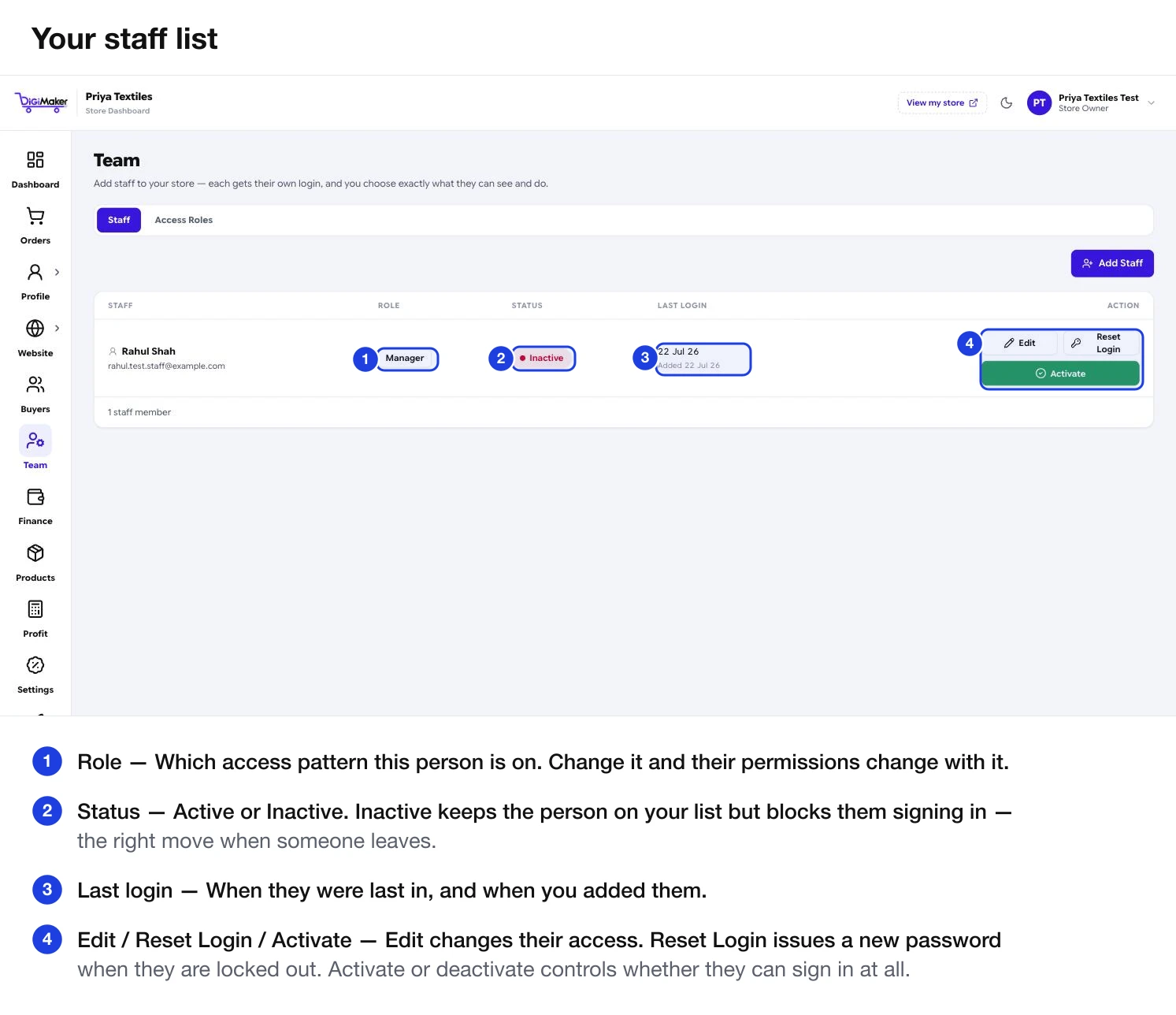
Each staff row shows their role, whether they are Active or Inactive, and their last login. The actions:
| Action | What it does |
|---|---|
| Edit | Change their role or fine-tune their access. |
| Reset Login | Issue a new password when they are locked out. |
| Activate / Deactivate | Controls whether they can sign in at all. |
Adding a staff member
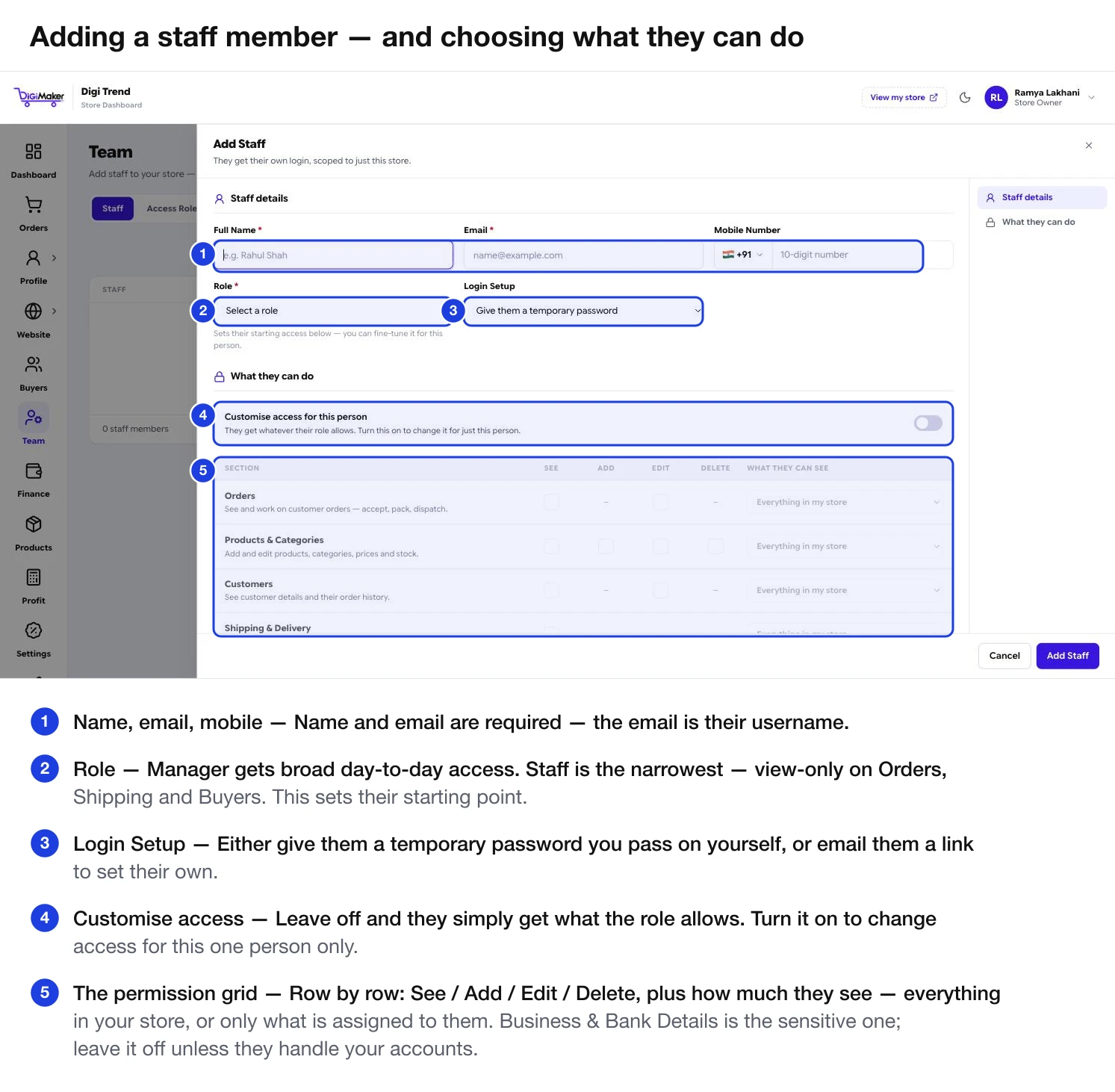
Fill in name and email
Both required. The email is their username, so it must be one they can actually open.
Pick a role
Manager gets broad day-to-day access — everything except business/GST/bank/domain settings and team management. Staff is the narrowest: view-only on Orders, Shipping and Buyers.
Choose how they get their password
Either give them a temporary password you pass on yourself, or email them a set-password link. The link is safer — the password never travels through WhatsApp.
Fine-tune access, if you need to
Leave Customise access for this person off and they simply get what the role allows. Turn it on to change access for this one person without affecting anyone else on that role.
Add Staff
They can sign in at seller.digimaker.in straight away.
The permission grid
Each row is a section of the dashboard. Across the top: See, Add, Edit, Delete, and what they can see — everything in your store, or only what is assigned to them.
| Section | What it covers | Can be scoped to |
|---|---|---|
| Orders | Accept, pack and dispatch customer orders. | Only orders assigned to them |
| Products & Categories | Add and edit products, categories, prices and stock. | Only products they added |
| Customers | Buyer details and order history. | Only customers assigned to them |
| Shipping & Delivery | Courier bookings, tracking, delivery updates. | Only shipments for their own orders |
| Website & Store Setup | Theme, builder, domain and store settings — plus a separate publish permission. | All or nothing |
| Business & Bank Details | GST, PAN, bank account, payout details. | All or nothing |
| Finance & Wallet | Wallet balance, settlements, payout history. | All or nothing |
| Marketing & Ads | Meta and Google ad accounts, pixel, campaign performance. | All or nothing |
| Reports | Sales and performance reports. | All or nothing |
Access roles
Rather than setting the same nine rows for every new packer, set the pattern once and reuse it.
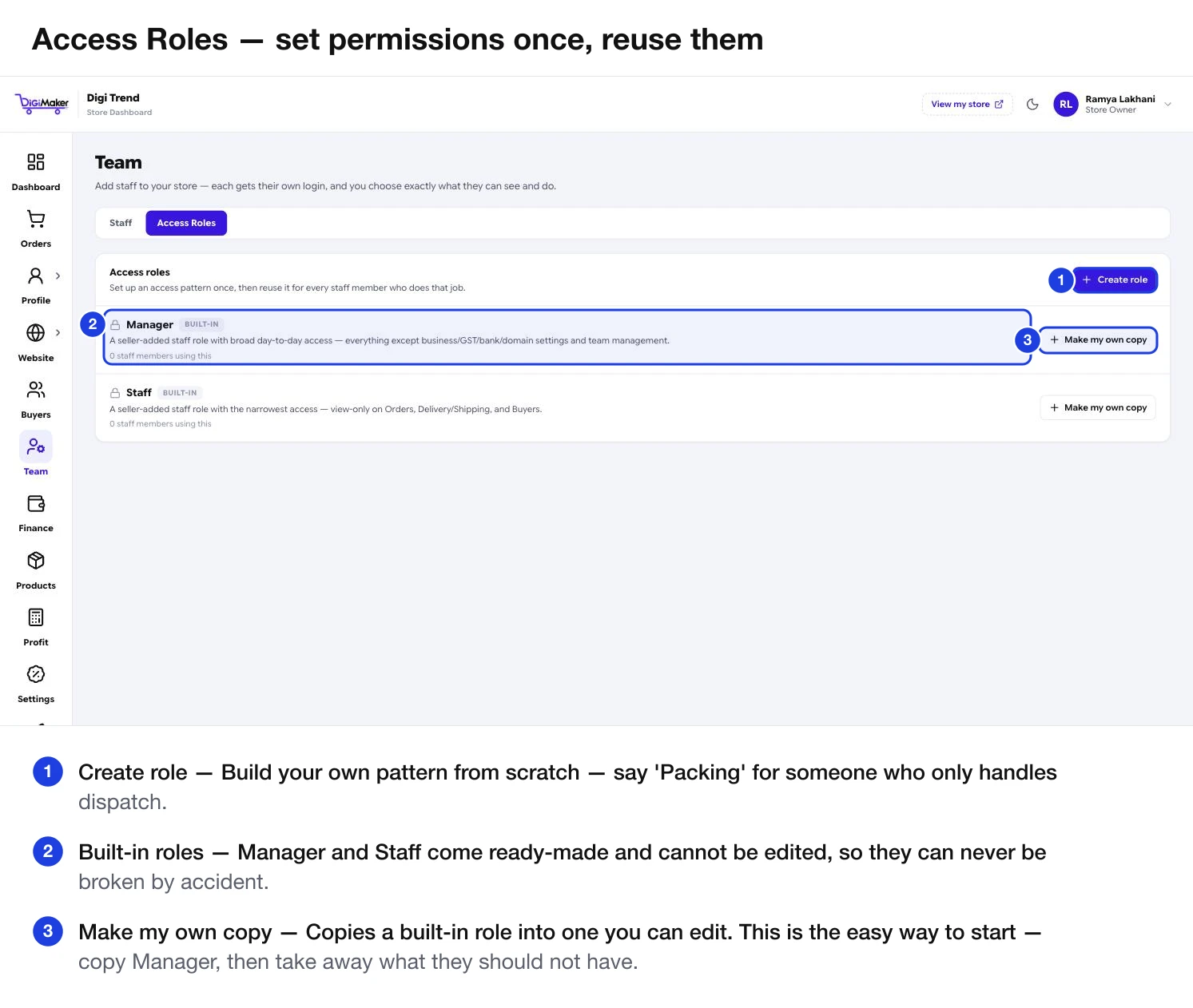
- Manager and Staff are built in. They cannot be edited, so they can never be broken by accident.
- Make my own copy duplicates a built-in role into one you can change. This is the easy path: copy Manager, then take away what that job should not have.
- Create role starts from scratch — useful for a narrow job like “Packing” where almost everything should be off.
- Each role card shows how many staff members are using it, so you know what a change will affect.
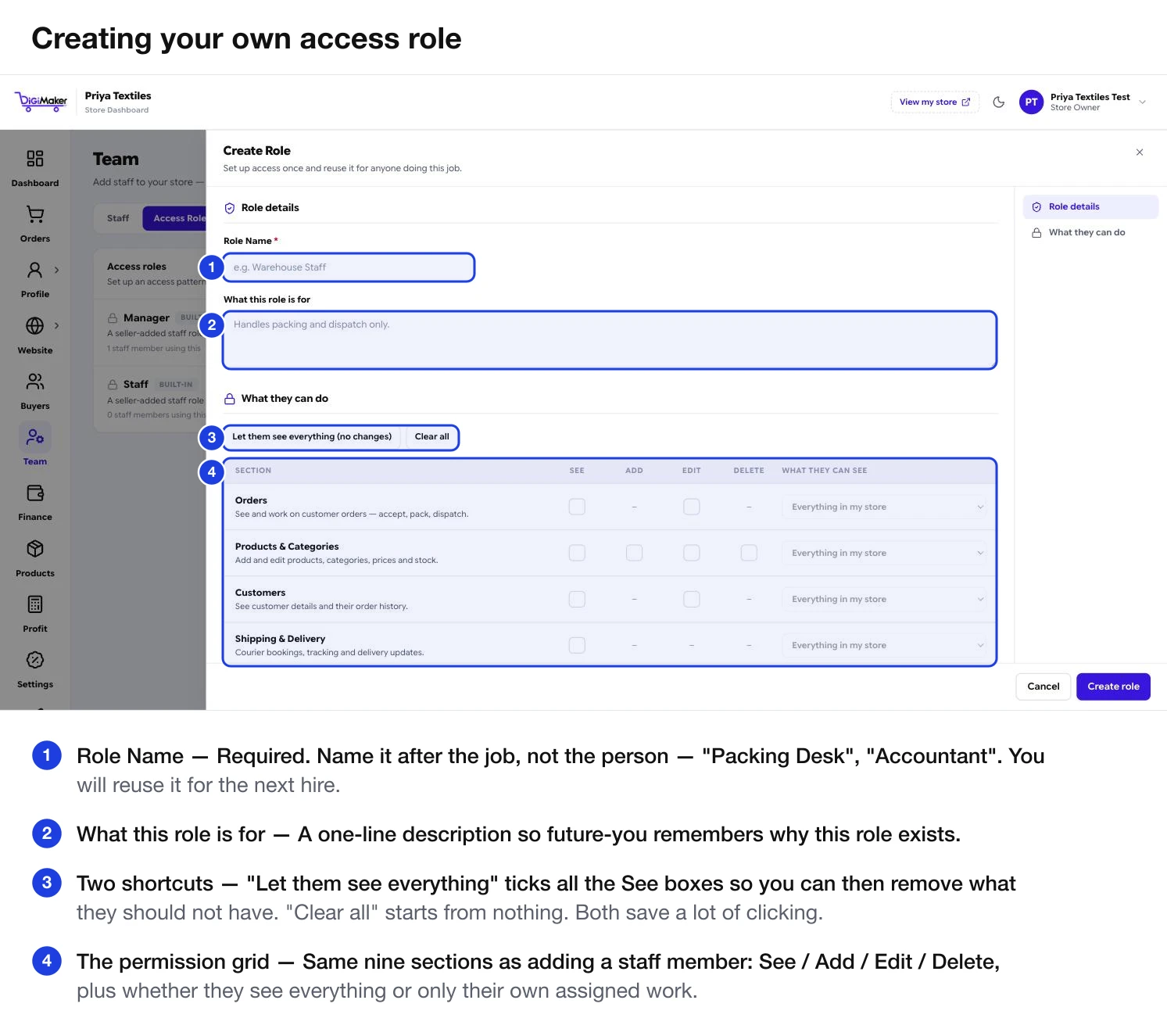
| Field | What to put in it |
|---|---|
| Role Name | Required. Name it after the job — “Packing Desk”, “Accountant” — so you can reuse it for the next hire. |
| What this role is for | One line, so future-you remembers why it exists. |
| Let them see everything | Ticks every See box, so you can then take away what they should not have. |
| Clear all | Starts from nothing. Faster when the role should only touch one section. |
| The grid | The same nine sections as adding a staff member, with See / Add / Edit / Delete and the “everything vs. only their own” scope. |
Common setups
Orders: See + Edit, scoped to orders assigned to them. Shipping: See. Everything else off. They can move parcels along without seeing your prices, margins or bank account.
Products & Categories: See, Add, Edit. Everything else off. They can load products all day and never touch an order or a rupee.
Finance & Wallet: See. Business & Bank Details: See. Reports: See. Nothing with Add or Edit — they read, they do not change.
Start from the built-in Manager role. It already excludes bank details, domain settings and team management, which is usually exactly right.