

Your Business
Business & GST details
Your legal business details, GST and PAN, business address, customer support contacts, and the return and refund policy that generates your storefront's policy pages.
The longest form in setup, and worth doing carefully in one sitting. What you type here ends up in three places: your invoices, your storefront’s footer and contact page, and the policy pages your buyers read before deciding to trust you.
Where to find it: menu → Profile → Business & GST Details.
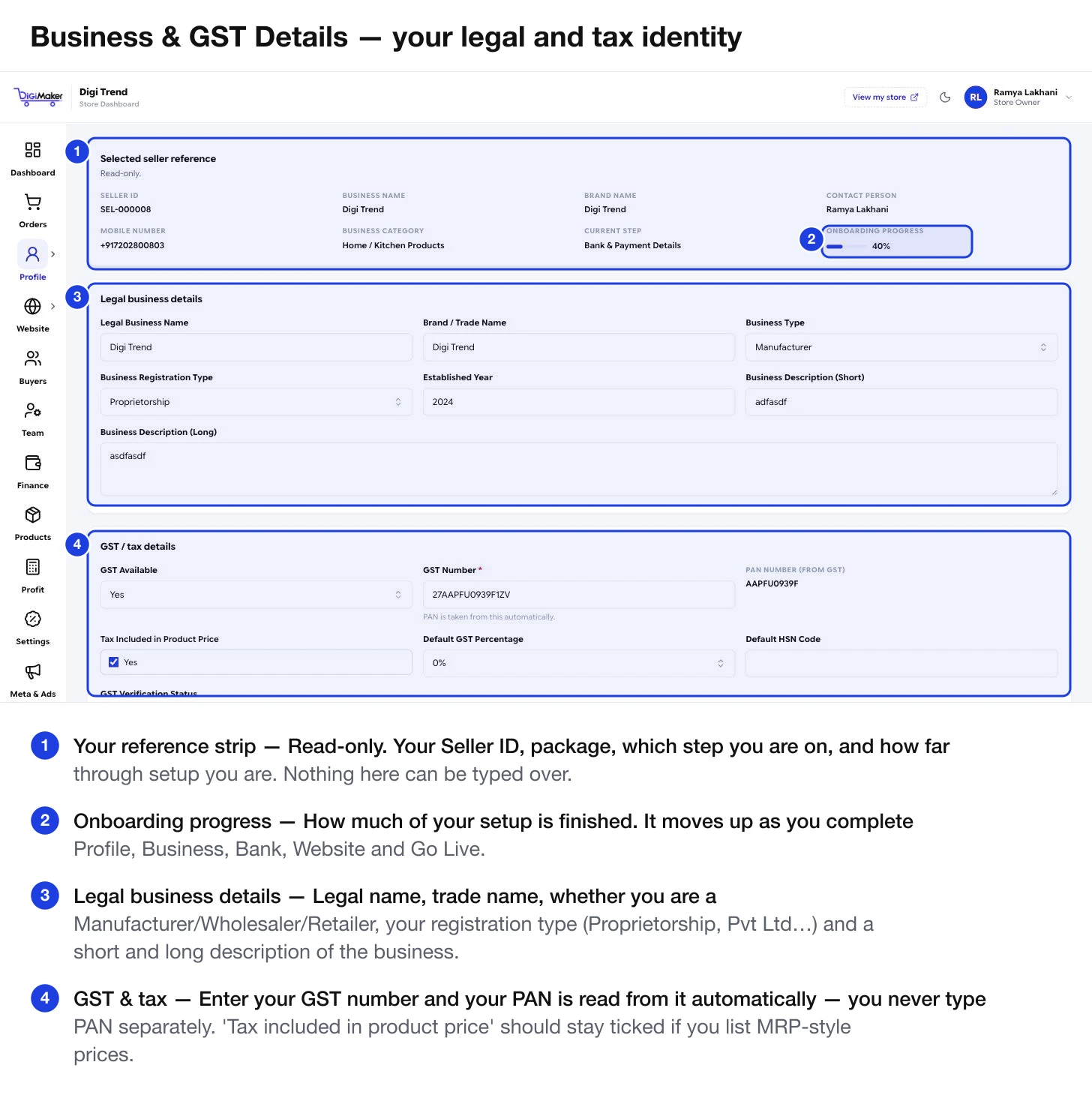
The reference strip at the top
Read-only, and useful. It shows your Seller ID, business and brand name, contact person, mobile, business category, which onboarding step you are on, and an onboarding progress bar.
Legal business details
| Field | What to put in it |
|---|---|
| Legal Business Name | Exactly as it appears on your GST certificate or registration papers. |
| Brand / Trade Name | The name you trade under, if different. |
| Business Type | Manufacturer, Wholesaler, Retailer, and so on — what you actually are in the chain. |
| Business Registration Type | Proprietorship, Partnership, Pvt Ltd, LLP, and so on. |
| Established Year | The year you started. It appears on some storefront designs as a trust signal. |
| Business Description (Short) | One line. Used on your storefront’s about strip. |
| Business Description (Long) | A paragraph or two. Used on your About page. Write it for a customer, not a bank. |
GST and tax
Set GST Available
Yes if you are GST registered, No if you are not. Choosing No hides the fields below it.
Enter your GST Number
Required when GST is available. Fifteen characters, as printed on your certificate.
Your PAN fills in automatically
PAN is read out of the GST number — you never type it separately, and there is no way to enter a PAN that disagrees with your GST.
Decide 'Tax Included in Product Price'
Tick it if you list MRP-style prices, which most Indian sellers do. Leave it ticked unless your accountant tells you otherwise.
Set a Default GST Percentage and HSN Code
These pre-fill each new product so you are not picking the same slab twenty times. You can still override either on any individual product.
GST Verification Status shows whether we have confirmed the number against the GST records. It moves to Verified on its own once checked.
Address details
Your Business Address is not just paperwork — it becomes the default pickup address couriers register against.
Fill in State, City, Pincode and Country. Tick Billing Address Same as Business unless you genuinely bill from a different place.
Contact & support details
These appear on your storefront footer, contact page and policy pages. Buyers do read them.
| Field | Where it shows |
|---|---|
| Primary Contact Number | Storefront footer and contact page. |
| WhatsApp Number | Powers the WhatsApp button on your shop. |
| Support Email | Contact page and order emails. |
| Order Support Number | Given to buyers chasing an order. |
| Return / Refund Support Number | Given to buyers wanting to send something back. |
| Customer Support Timing | e.g. “10am – 7pm”. Sets expectations so nobody feels ignored at 11pm. |
| Business Working Days | Which days you dispatch. |
Policy settings
Four small fields with an outsized effect — they generate your storefront’s policy pages automatically.
- Return Allowed — whether buyers can send things back at all.
- Return Days — how many days they have. Seven and thirty are the common choices.
- Exchange Allowed — whether you swap rather than refund.
- Refund Mode — how the money goes back.
Status & notes
At the bottom: Business Details Status, Pending From, Pending Reason and an Internal Note. These are how our onboarding team tracks your file. If something is marked as needing correction, the reason is written here.
Buttons: Save Details, or Save & Continue to Bank / Payment to move on.