

Products
Categories
Creating the groups your products sit in, sub-categories, category images and banners, and the visibility settings that put a category on your homepage.
Categories are how shoppers find things. Every product must sit under one, so build these before you start adding products.
Where to find it: menu → Products → Catalogue / Category Setup tab.
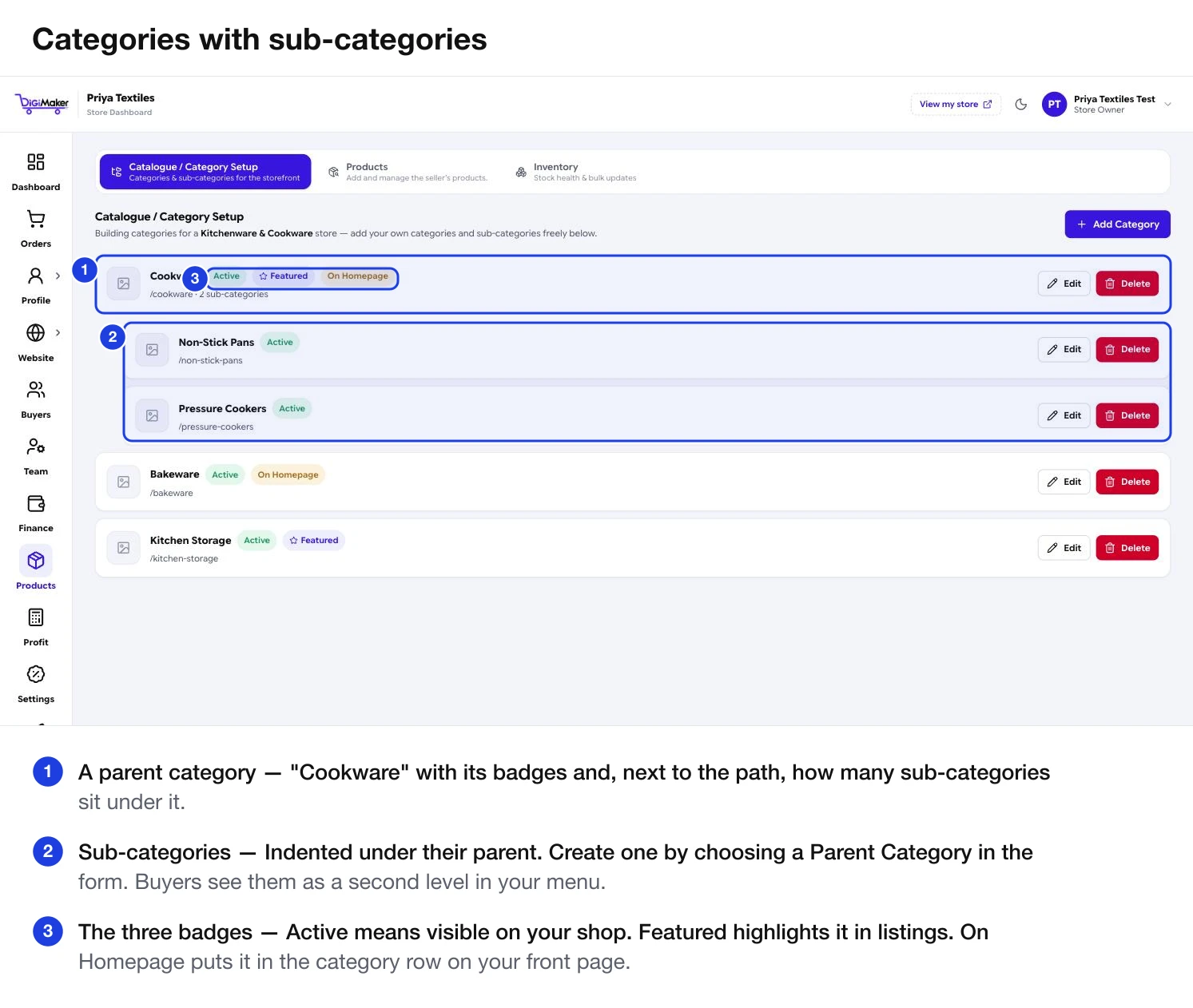
Reading a category row
Each row carries badges telling you its state at a glance:
- Active — visible on your shop. Without this, shoppers cannot see it.
- Featured — highlighted in category listings.
- On Homepage — appears in the category row on your front page.
The path underneath (/cookware) is the web address that category lives at. Next to it, a parent category shows how many sub-categories sit under it.
Sub-categories are drawn indented beneath their parent, so the structure your buyers will navigate is the structure you see here.
Adding a category
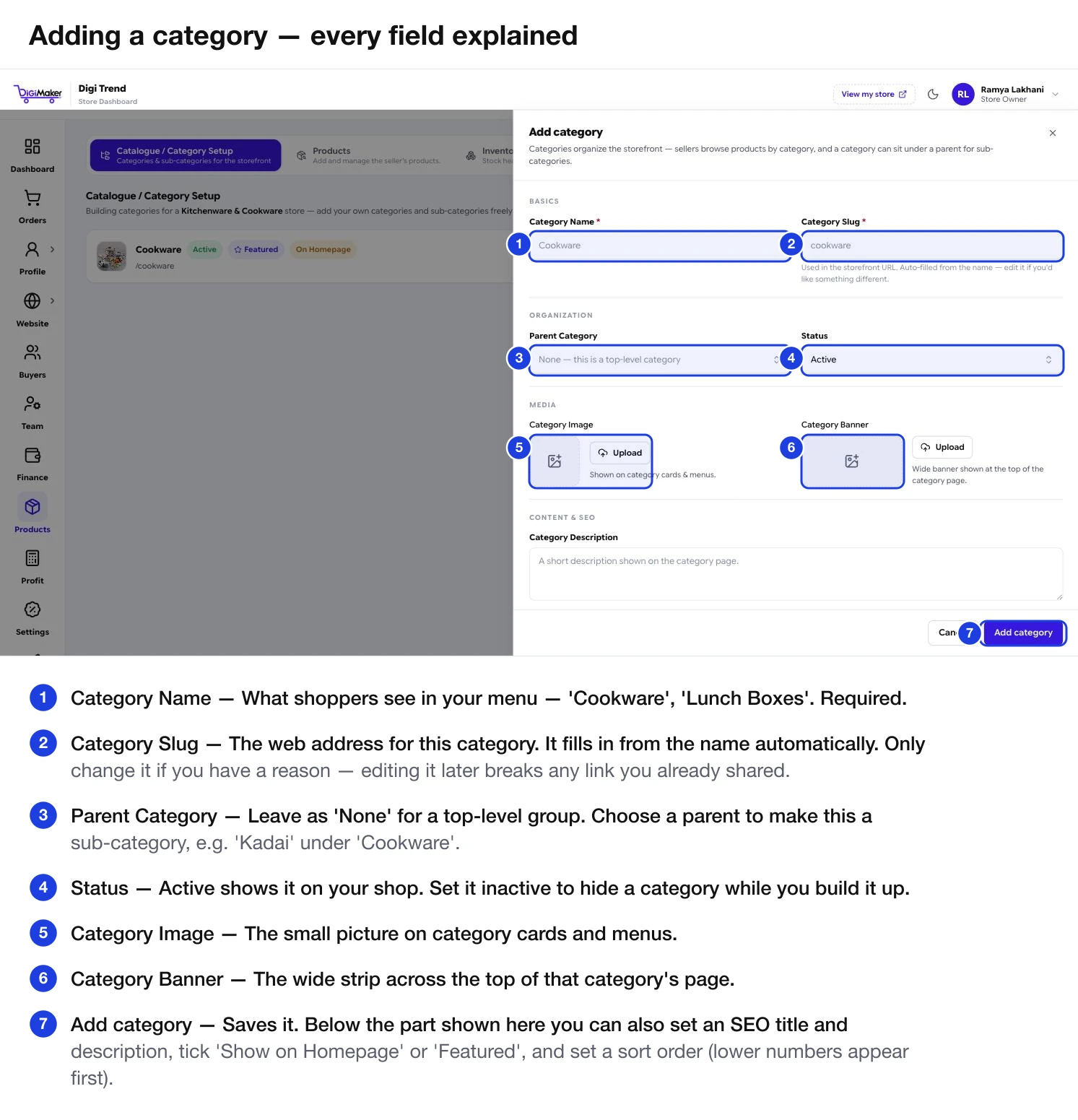
Every field
| Field | What it does |
|---|---|
| Category Name | What shoppers see in your menu. Required. |
| Category Slug | The web address. Fills in from the name automatically. Required. |
| Parent Category | Leave as None for a top-level group. Choose a parent to make this a sub-category. |
| Status | Active shows it on your shop. Set inactive to hide it while you build it up. |
| Category Image | The small picture on category cards and in menus. |
| Category Banner | The wide strip across the top of that category’s page. |
| Category Description | A short paragraph on the category page. |
| SEO Title | What shows in the browser tab and in Google results. |
| SEO Description | The grey line under your link in Google results. |
| Show on Homepage | Puts it in the homepage category row. |
| Featured Category | Highlights it in listings. |
| Sort Order | Lower numbers appear first. Use it to put your best-selling category at the front. |
Structuring your categories
Four to eight top-level categories is plenty for most sellers. Add sub-categories only when a category has enough products that shoppers cannot scan it — usually past fifteen or twenty items.
“Lunch Boxes” not “SS Containers Range 3”. Your internal product-line names mean nothing to a first-time visitor.
Pick a parent in the form and the new category nests underneath it — “Kadai” under “Cookware”. Shoppers see it as a second level in the menu.
Set Status to inactive. It stays in your dashboard with all its products, and shoppers cannot see it. Switch it Active when the products are ready.
Deleting a category
Delete is on the row itself. Move or reassign the products inside it first — a category with products in it is doing a job for somebody.