

Products
Importing your catalogue
Bring your whole product list in from Flipkart or any spreadsheet — download the template, match your columns, check the preview, then import.
If you already sell on Flipkart or keep your products in a spreadsheet, you do not have to retype them. Import brings the lot in at once.
Where to find it: menu → Products → Products tab → Import catalog.
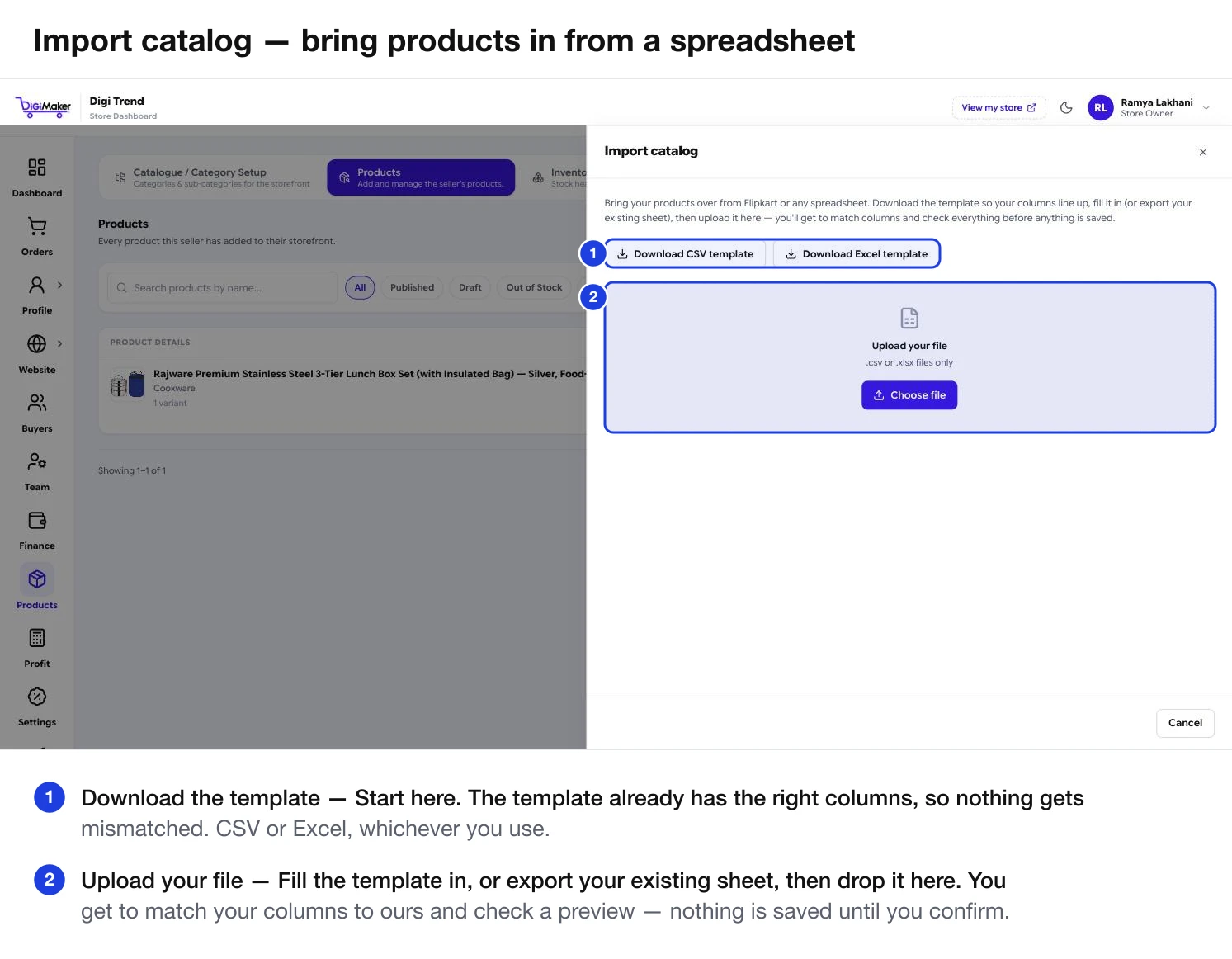
How it works
Download the template
Download CSV template or Download Excel template, whichever you prefer to work in. The template already has the right columns in the right order, so nothing gets mismatched.
Fill it in, or export what you already have
Either type into the template, or export your existing sheet from Flipkart or wherever you keep it — you will match the columns up in the next step, so they do not have to be named the same.
Upload the file
.csv or .xlsx only.
Match your columns to ours
You are shown your columns beside DiGiMaker’s fields and you pair them up. Anything you leave unmatched simply is not imported.
Check the preview
A sample of what will be created, exactly as it will appear. This is where you catch a price column that came in as text or a category that does not exist yet.
Confirm the import
Nothing is saved until you press this. Afterwards you get a report of what came in and anything that was skipped.
Getting your spreadsheet ready
Products need a category that already exists. Make them in Categories before importing, and use the exact same names in your sheet.
799, not ₹799 or 799.00/-. Currency symbols and dashes turn the column into text and the price will not import.
Every product needs its own code. If your sheet has no SKU column, add one and fill it — even something simple like SKU-001 upwards.
Product images are added in the product form rather than through the spreadsheet. Import the data first, then go through and add photos — a listing without a photo will not sell, so this is not an optional follow-up.
If a product comes in three sizes, that is three rows sharing a product name, each with its own SKU, price and stock. You can join them afterwards with Merge products into variants.
After the import
The import report tells you what was created and what was skipped, and why.
Work down the list in order of what sells most. A hundred half-finished listings is normal on day one — a hundred half-finished listings a month later is lost sales.