

Products
Inventory & stock
The stock screen — low-stock and out-of-stock views, editing a count inline, bulk updates, and reading sale rate and days on hand.
Stock is the thing that quietly costs you money in both directions: too little and you lose sales, too much and your cash is sitting on a shelf. This screen is where you keep it honest.
Where to find it: menu → Products → Inventory tab.
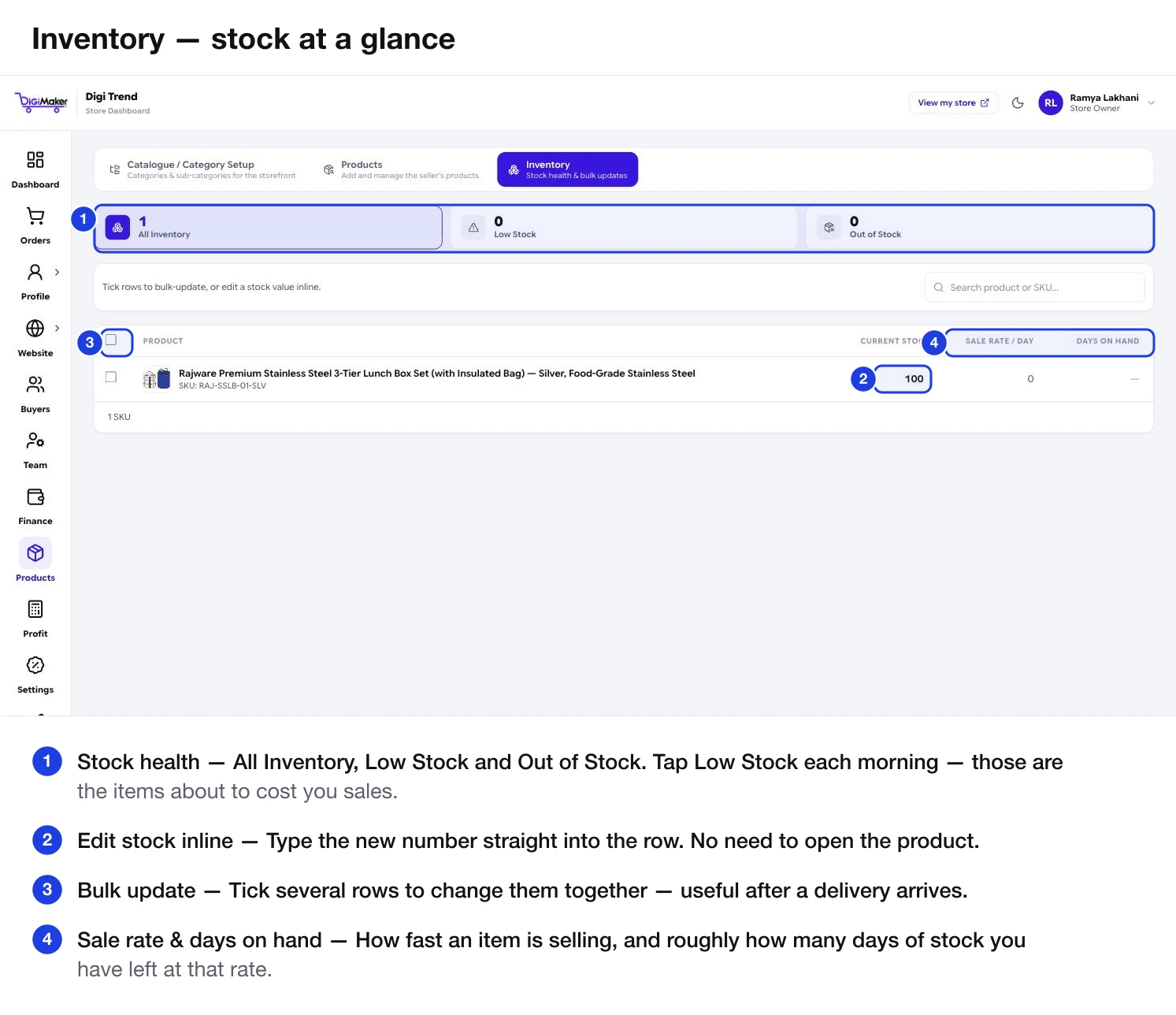
The three views
| View | What it shows | When to look |
|---|---|---|
| All Inventory | Every SKU you sell. | When taking a full count. |
| Low Stock | Items below the low-stock alert you set on the product. | Every morning. These are the items about to cost you sales. |
| Out of Stock | Items at zero. | Every morning. These are already costing you sales. |
Updating stock
- Inline — click the stock number in the row and type the new one. Fastest for one or two changes.
- In bulk — tick several rows and update them together. This is the one to use after a production batch lands.
- From the Products list — there is also an Update link beside the stock figure on each product row.
Sale rate and days on hand
Two columns that turn a stock count into a decision:
- Sale rate / day — how many of this item you are selling per day.
- Days on hand — roughly how many days of stock you have left at that rate.
When days on hand drops below how long it takes you to make or buy more, it is time to restock. That is the whole reason the column exists.
Stock with variants
Each variant is its own row with its own SKU. If medium sells out, only medium shows as unavailable — small and large stay buyable. Update sizes independently without touching each other.
What buyers see at zero
A product at zero stock shows as out of stock rather than disappearing. That is deliberate: the page keeps its search ranking and its reviews, and a buyer who wanted it knows you make it. Hide it properly by turning off Show on Website in step 4 of the product form if you have genuinely discontinued it.