

Products
Adding products
The four-step product form explained field by field — basics and photos, pricing and stock, shipping and attributes, then visibility and publishing.
Adding a product takes four steps. You can move back and forward between them freely, and nothing goes on your shop until you press Publish on the last one.
Where to find it: menu → Products → Products tab → Add Product.
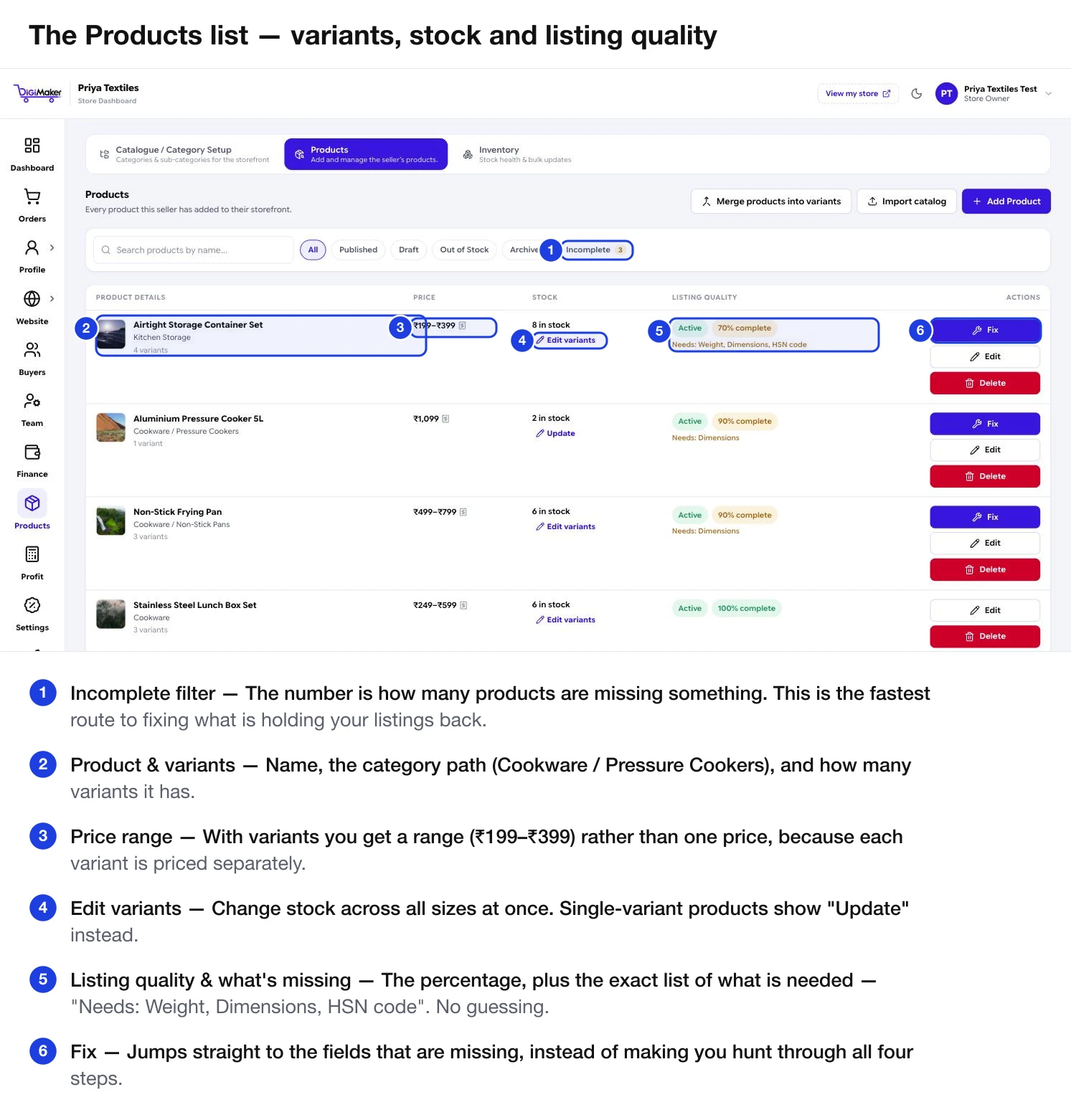
Each row shows the product, its category path, how many variants it has, and a price range rather than a single price when variants are priced differently. Edit variants changes stock across all sizes at once; single-variant products show Update instead.
Step 1 — Basic product details
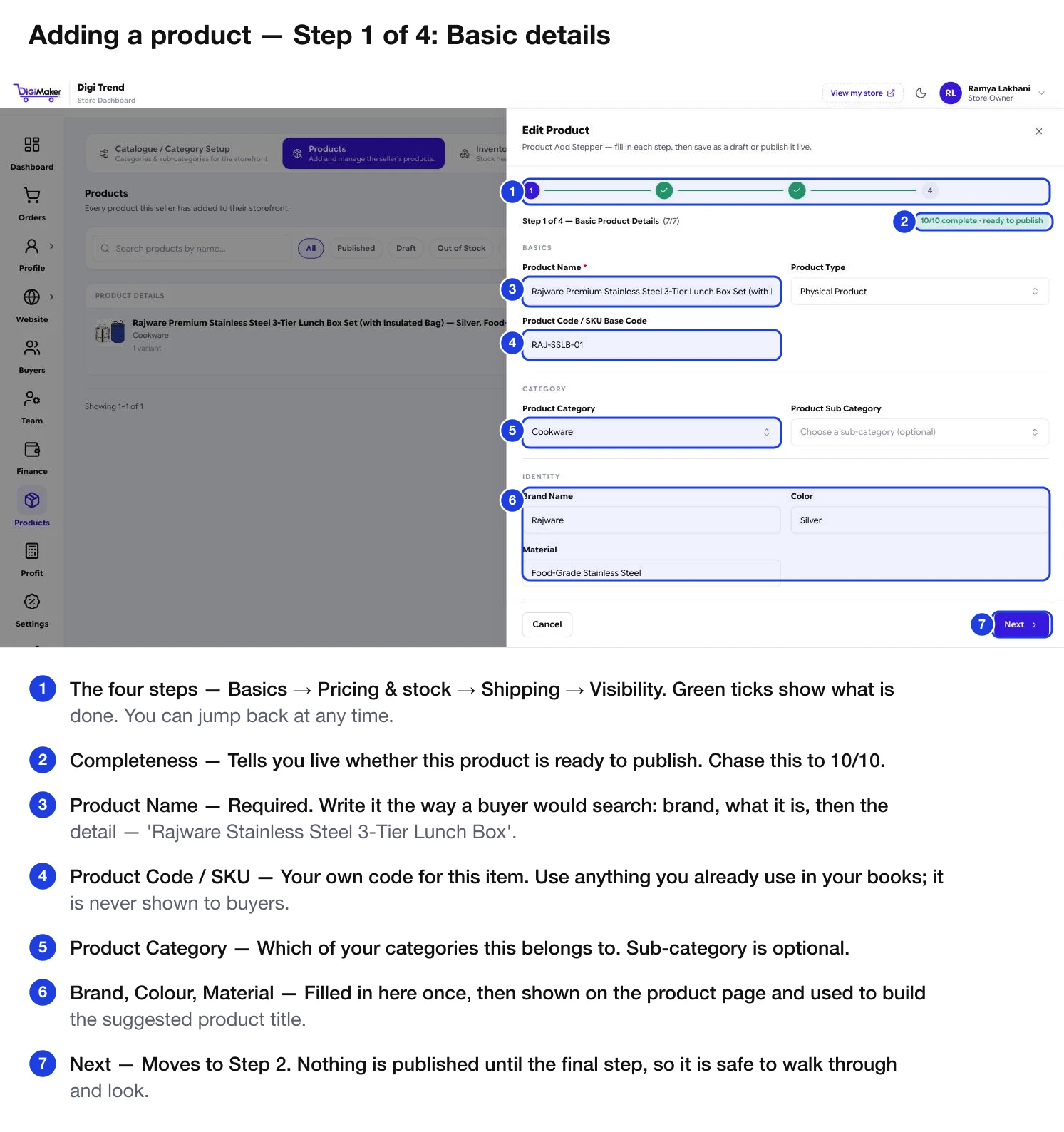
| Field | What to put in it |
|---|---|
| Product Name | Required. Write it the way a buyer would search: brand, what it is, then the detail. |
| Product Type | Physical Product for anything you ship. |
| Product Code / SKU Base Code | Your own code. Never shown to buyers — use whatever you already use in your books. |
| Product Category | Which of your categories this belongs to. |
| Product Sub Category | Optional. |
| Brand Name | Your brand. |
| Color | The colour of this product. |
| Material | What it is made of. |
Description, keywords, tax and photos
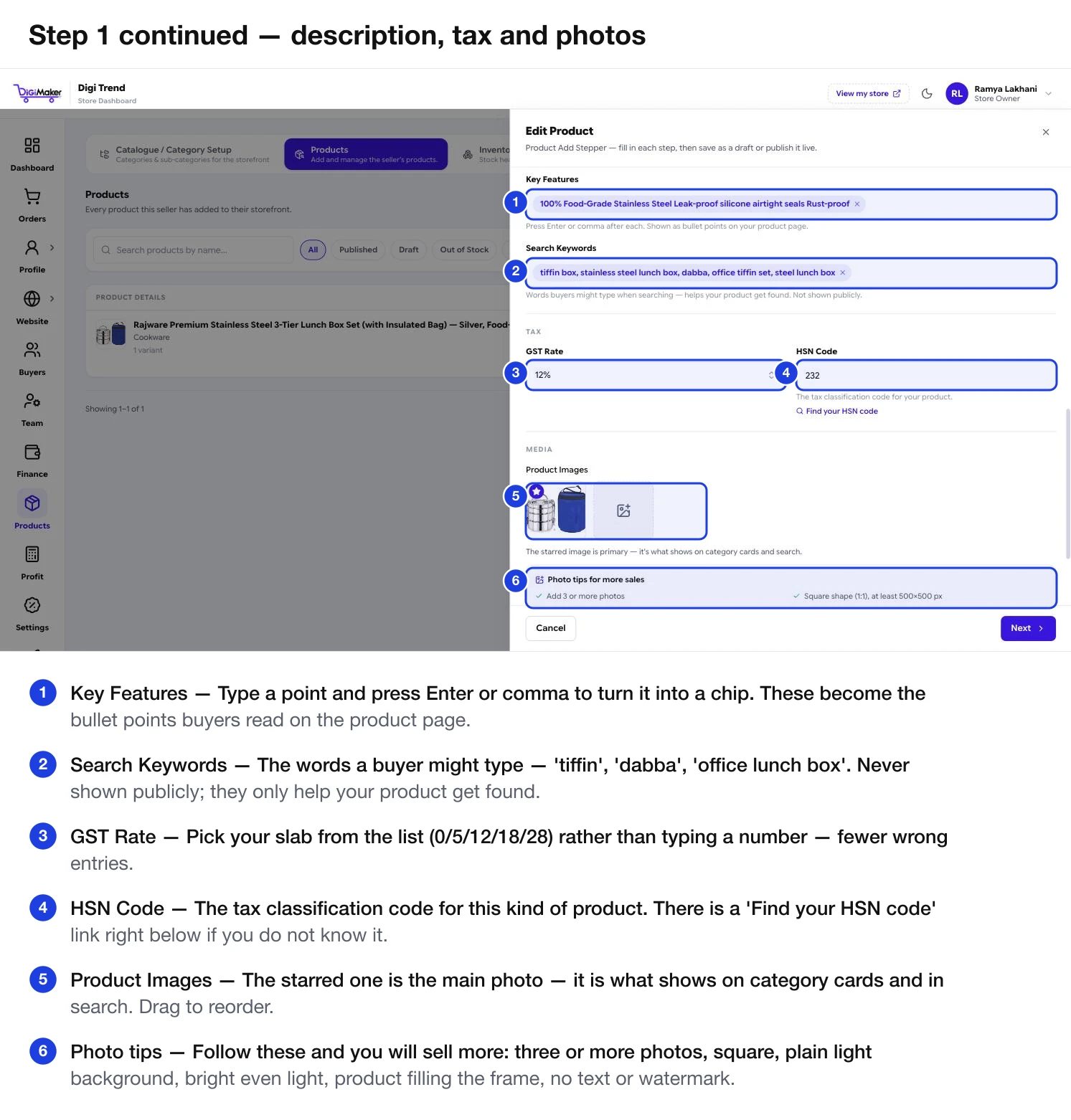
| Field | What to put in it |
|---|---|
| Product Short Description | Up to 200 characters. One or two sentences shown near the top of the product page. |
| Product Long Description | Up to 5,000. Material, size, use, and what is included. This is what buyers actually read before deciding. |
| Key Features | Type a point, press Enter or comma, it becomes a chip. Shown as bullet points on the product page. |
| Search Keywords | Words a buyer might type — “tiffin”, “dabba”, “office lunch box”. Never shown publicly; they only help your product get found. |
| GST Rate | Pick your slab from the list. Pre-filled from the default on your business details. |
| HSN Code | The tax classification code. There is a Find your HSN code link right underneath if you do not know it. |
| Product Images | The starred image is the primary one — it shows on category cards and in search. Drag to reorder. |
| Product Video | Optional. Paste a YouTube or Vimeo link. |
| Size Chart Image | Optional. Useful for anything size-based. |
Step 2 — Pricing, SKU & inventory
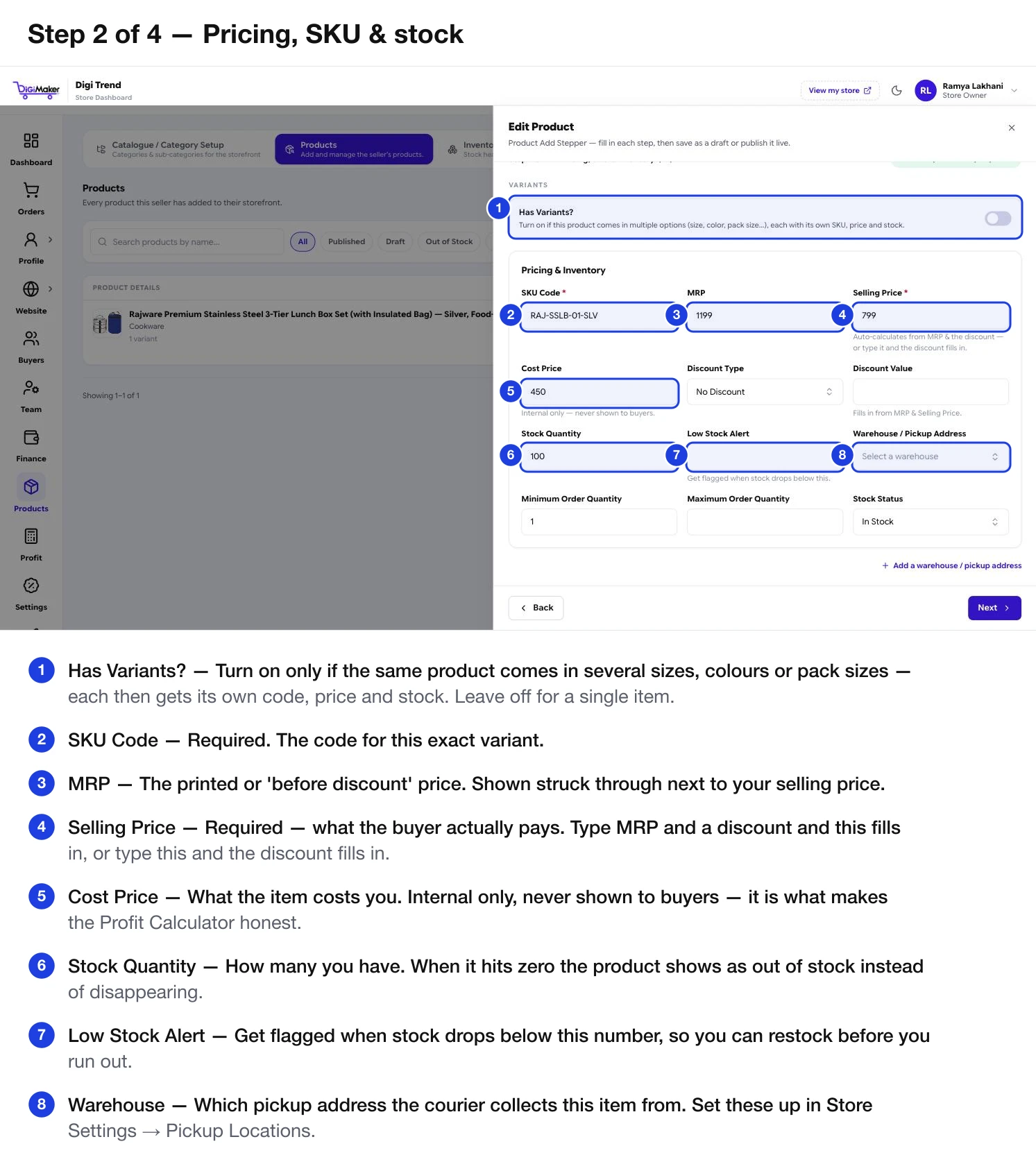
| Field | What to put in it |
|---|---|
| Has Variants? | On only if this comes in several sizes, colours or pack sizes. See Variants & merging. |
| SKU Code | Required. The code for this exact item or variant. |
| MRP | The printed or “before discount” price. Shown struck through beside your selling price. |
| Selling Price | Required — what the buyer actually pays. Type MRP plus a discount and this fills in, or type this and the discount fills in. |
| Cost Price | What it costs you. Internal only, never shown to buyers. |
| Discount Type / Value | No discount, a percentage, or a flat amount. Works together with MRP and selling price. |
| Stock Quantity | How many you have. At zero, the product shows as out of stock rather than vanishing. |
| Low Stock Alert | Get flagged when stock drops below this, so you can restock in time. |
| Warehouse / Pickup Address | Which address the courier collects this from. See Pickup locations. |
| Minimum / Maximum Order Quantity | Guard rails per order. Useful if you only sell in boxes of six. |
| Stock Status | In Stock or out. |
Step 3 — Shipping & product attributes
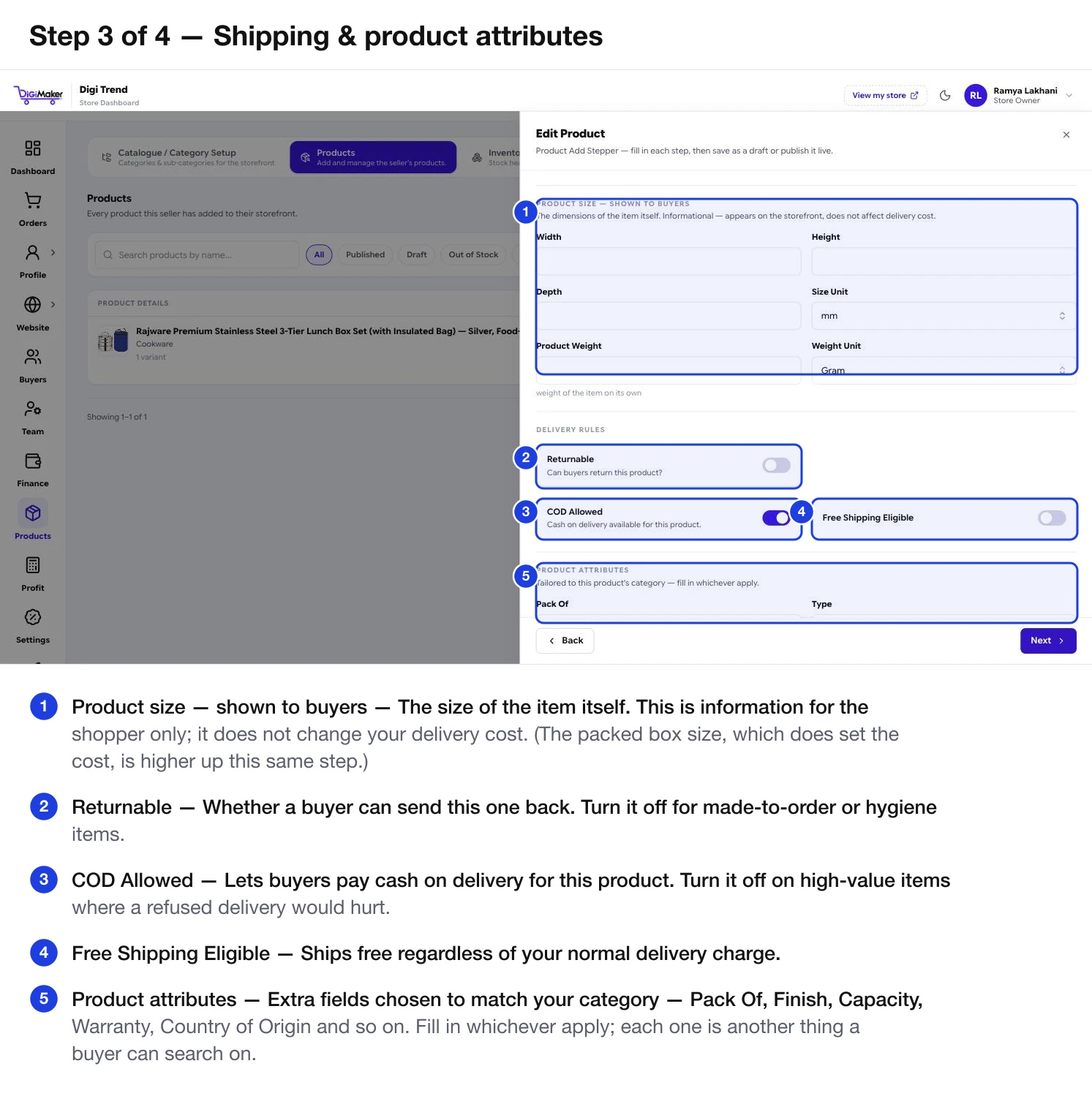
Two different sizes — do not mix them up
- Packaging size — the shipped box. Measure the packed parcel, including box, filler and wrapping. This sets your delivery cost.
- Product size — shown to buyers. The dimensions of the item itself. Information only; it does not change delivery cost.
Delivery partner
The form lists every courier with its base rate, per-kg rate and estimated cost for this parcel — India Post, XpressBees, Ecom Express, DTDC, Ekart, Delhivery, Shiprocket and Blue Dart. Use store default inherits whatever the store picks; or choose a specific partner whose price suits this product.
Delivery rules
| Switch | What it does |
|---|---|
| Returnable | Whether buyers can send this back. Turn off for made-to-order or hygiene items. |
| COD Allowed | Whether cash on delivery is offered for this product. Turn off on high-value items where a refused delivery would hurt. |
| Free Shipping Eligible | Ships free regardless of your normal delivery charge. |
Product attributes
The fields here are chosen to match your category — Pack Of, Type, Finish, Usage, Dishwasher Safe, Water Resistance, Country of Origin, Product Dimensions, Capacity, Warranty, Eco Friendly. Fill in whichever apply. Each one is another thing a buyer can filter or search on.
Step 4 — Collection & visibility
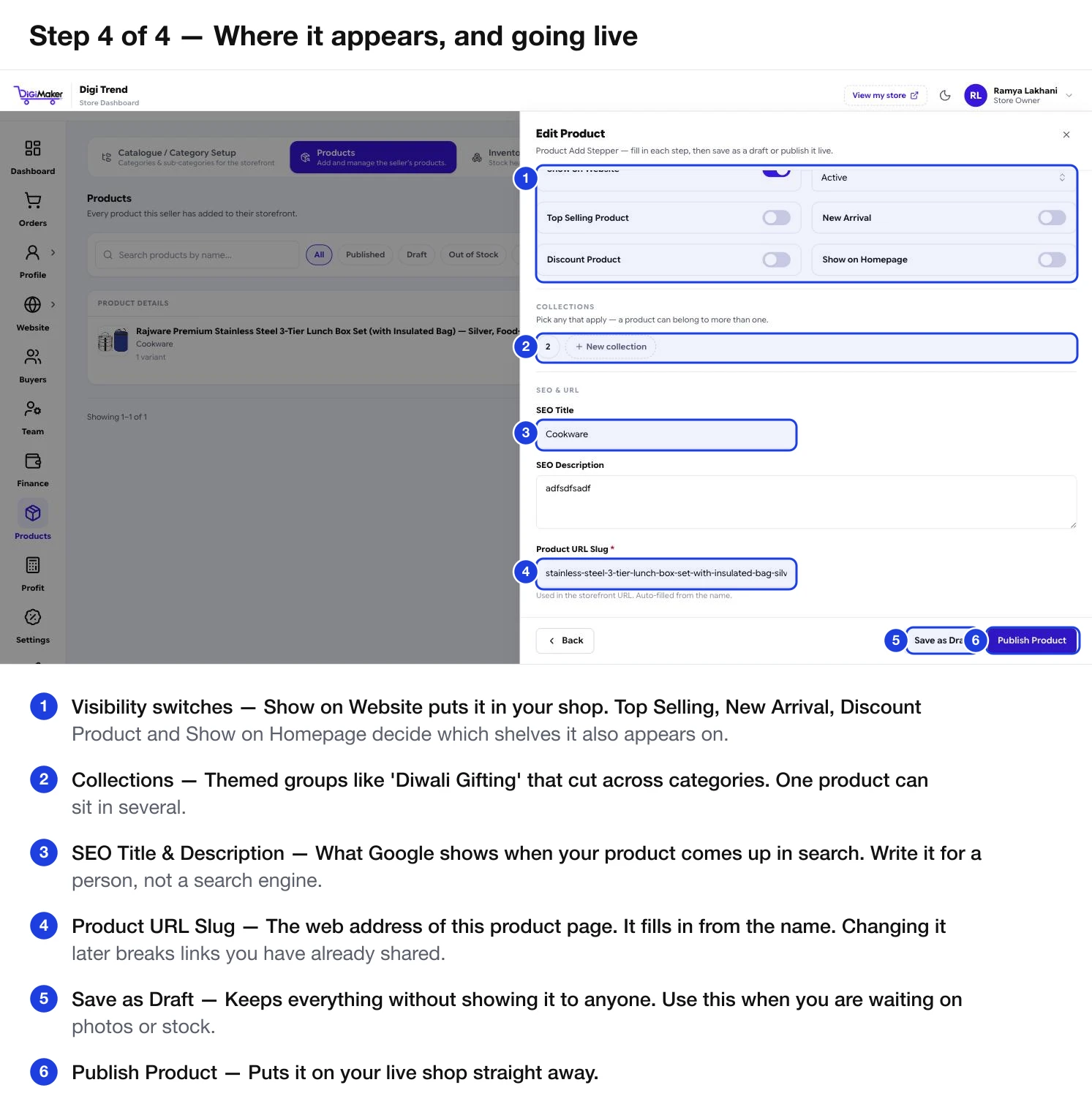
| Setting | What it does |
|---|---|
| Show on Website | Whether it appears in your shop at all. |
| Product Status | Active or otherwise. |
| Top Selling Product | Adds it to the best-sellers shelf. |
| New Arrival | Adds it to the new-arrivals shelf. |
| Discount Product | Adds it to the offers shelf. |
| Show on Homepage | Puts it directly on your front page. |
| Collections | Themed groups that cut across categories — “Diwali Gifting”. One product can sit in several. |
| SEO Title / Description | What Google shows when this product comes up. Write it for a person. |
| Product URL Slug | Required. The web address. Fills in from the name — changing it later breaks links you have shared. |
Then either Save as Draft — keeps everything without showing anyone, useful while waiting on photos — or Publish Product, which puts it live immediately.
Listing quality
The Products list shows a completeness percentage per product, and an Incomplete filter. Chase 100%: a fuller listing gets found more often and answers more of the buyer’s questions before they have to ask.