
Your Website
Website setup status
Track how far along your storefront build is, see who is building it, and use the feedback box to ask our design team for changes.
If the DiGiMaker design team is building your storefront, this is the screen that tells you where it stands — and the fastest way to ask for a change.
Where to find it: menu → Website → Website Setup Status.
What each field tells you
| Field | What it means |
|---|---|
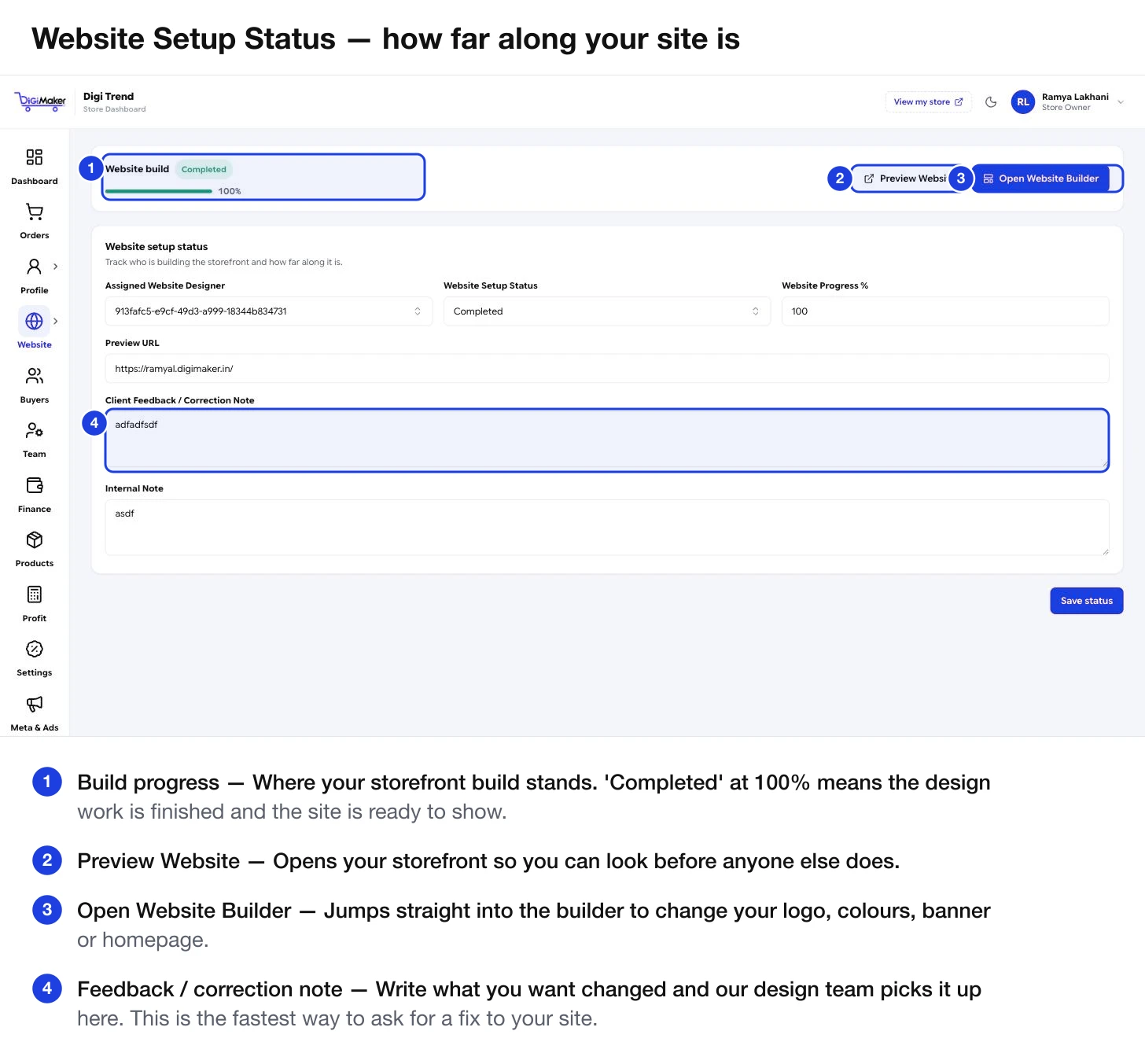
| Website build / progress bar | How far the build has got, as a percentage. Completed at 100% means the design work is finished. |
| Assigned Website Designer | Which of our designers is on your build. |
| Website Setup Status | The stage: not started, in progress, needs correction, completed. |
| Website Progress % | The number behind the bar. |
| Preview URL | The address where your build can be viewed. |
| Client Feedback / Correction Note | Where you write what you want changed. |
| Internal Note | Our team’s own working notes on your build. |
The two buttons
- Preview Website opens your storefront so you can look at it before anyone else does.
- Open Website Builder jumps straight into the builder, where you can change the logo, colours, banner or homepage yourself.
Asking for a change
The Client Feedback / Correction Note box is picked up directly by the designer assigned to you. It is a better route than a WhatsApp message because it sits next to your actual build.
Write what you want, press Save status, and the note is with them.
Doing it yourself instead
Everything the design team does, you can do — the builder is the same tool.
- Logo, colours, fonts → Brand identity
- Banner and homepage blocks → Hero & homepage
- The overall design → Themes & templates
Most sellers do a mix: the team sets it up, then the seller adjusts a banner or swaps a photo when a season changes.