

Your Website
Themes & templates
All six storefront designs, which trade each one is built for, how to preview them, and what happens to your products when you switch.
A template is the design your shop is built on — its layout, its typography, the way product pages are arranged. You pick one; your brand colours and logo are then applied on top of it.
Where to find it: menu → Website → Theme / Template Selection.
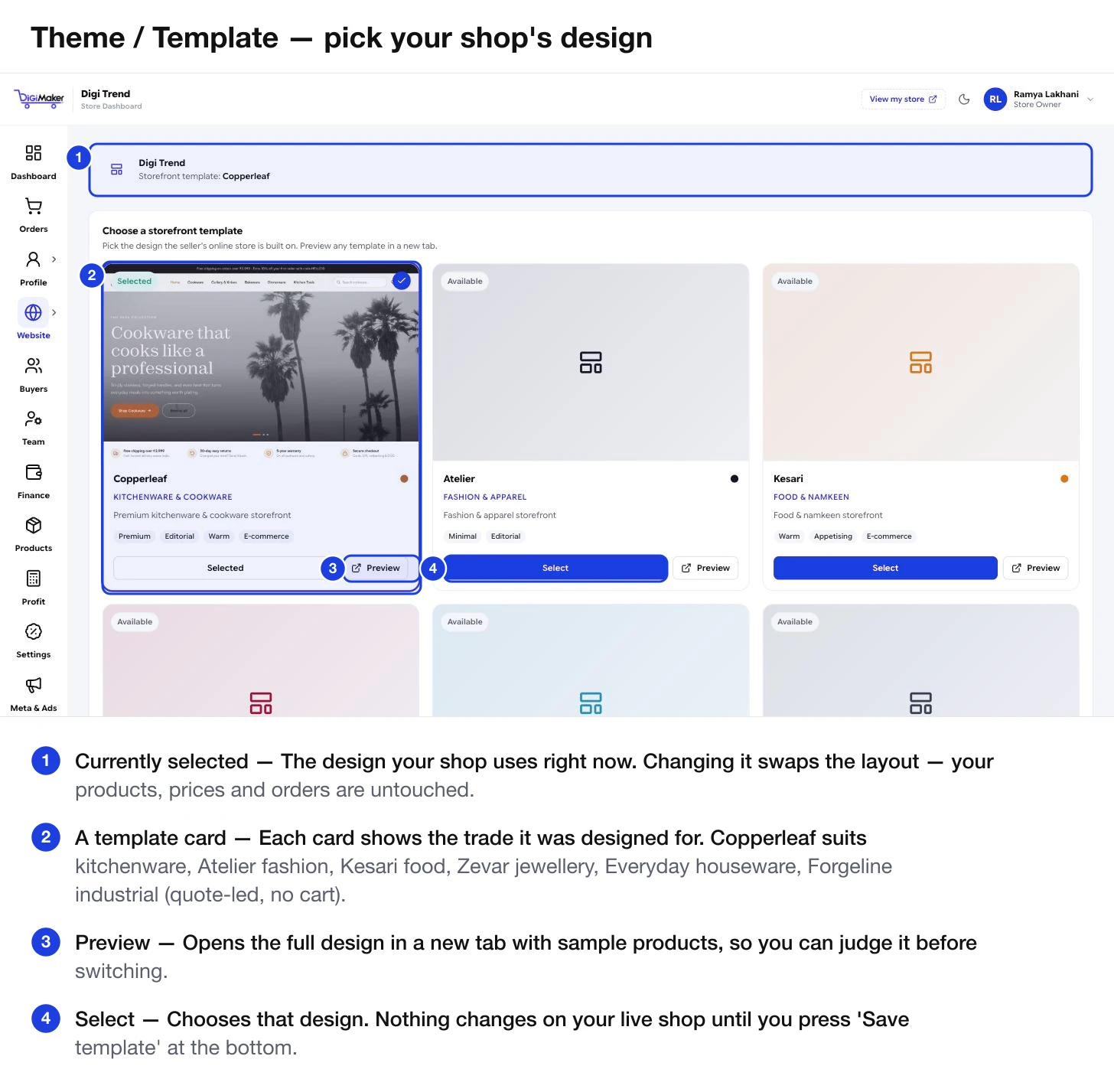
The six templates
| Template | Built for | Character |
|---|---|---|
| Copperleaf | Kitchenware & cookware | Premium, editorial, warm |
| Atelier | Fashion & apparel | Minimal, editorial |
| Kesari | Food & namkeen | Warm, appetising |
| Zevar | Imitation jewellery | Elegant, gallery-style |
| Everyday | Houseware & plastics | Practical, bright |
| Aurelle | Imitation jewellery | Light, modern luxe |
Choosing one
Preview before you decide
Every card has a Preview button that opens the full design in a new tab, filled with sample products. Look at it on your phone too.
Judge the layout, not the colours
The colours you see in a preview are the template’s defaults. Yours will replace them once you set your brand identity. Look at how products are arranged, how much room photos get, how the homepage flows.
Press Select on the one you want
The card becomes highlighted.
Press Save template
Nothing changes on your live shop until you do. The button is at the bottom of the page.
Switching later
You can change template whenever you like.
- Your products, categories, orders, buyers and settings are untouched. Only the layout changes.
- Your brand colours, logo and fonts carry across, because they live in Brand Identity rather than in the template.
- Hero slides and home sections carry across too.