

Store Settings
Announcement bar
The slim message strip across the top of every page of your shop — writing it, linking it, scheduling it, and switching it off.
The announcement bar is the thin line across the very top of your storefront, above everything else. It is the highest-visibility space on your shop and the easiest thing to change.
Where to find it: menu → Settings → Announcement Bar → Add announcement bar.
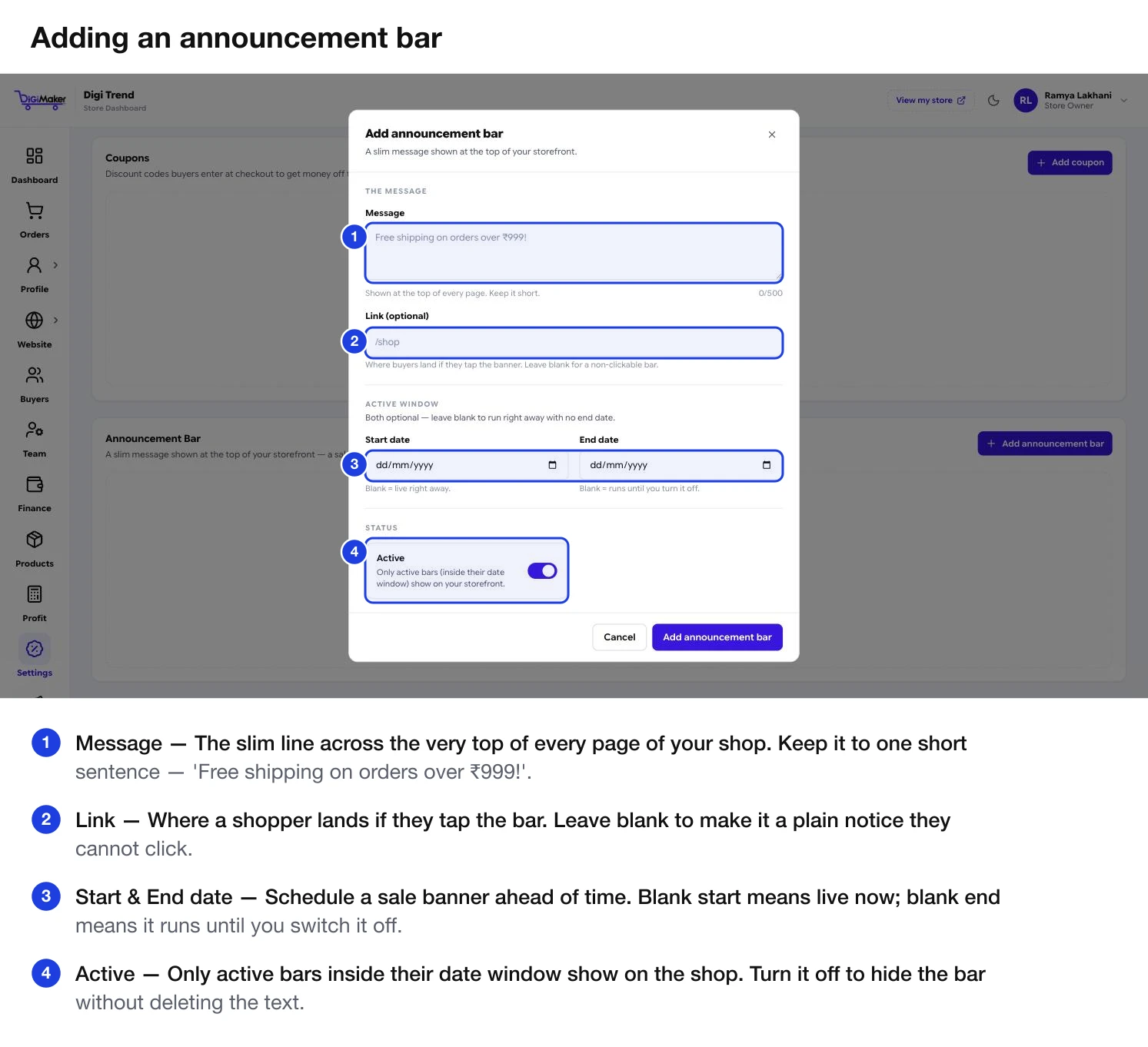
Every field
| Field | What it does |
|---|---|
| Message | The line itself, up to 500 characters — though it should be far shorter. Shown at the top of every page. |
| Link | Where a shopper lands if they tap the bar. Leave blank for a plain notice that cannot be clicked. |
| Start date | Blank means live right away. |
| End date | Blank means it runs until you switch it off. |
| Active | Only active bars, inside their date window, show on your shop. |
Writing one that works
Things worth putting there, roughly in order of usefulness:
- A free-shipping threshold — directly raises order value. Match it to the number you set in Delivery charges & GST.
- A live coupon code — the highest-visibility place to put it. See Coupons.
- A festival or sale window — with an end date set so it disappears on its own.
- A dispatch delay — “Orders placed after 25 Oct dispatch from 5 Nov”. Honest, and it prevents angry messages.
Scheduling ahead
Set a start date in the future and the bar goes live on its own that morning — you do not have to be at a computer. Set an end date and it retires itself. This is the right way to run any dated offer.
Linking it
If your bar mentions a sale, point the link at the relevant category or your Shop page so tapping it goes somewhere useful. A bar that looks tappable and does nothing is a small, repeated frustration.
Switching it off
Turn Active off rather than deleting it — the bar disappears from your shop immediately and you keep the wording to reuse next time.
With no active bar, your storefront simply shows no strip at all. The layout closes up cleanly; nothing looks broken.