

Orders & Shipping
Working an order
Every button on an order row — accepting, choosing a courier, labels and invoices, tracking, fixing a buyer's address, requesting a refund and cancelling.
Managing orders covers the six stages. This page covers every action you can take on an order, in the order you will need them.
The actions on a row
Nothing is hidden in a menu — every action sits on the order row itself.
| Action | What it does | When it appears |
|---|---|---|
| Accept order | Confirms you will fulfil it. Moves the order to To Pack. | To Accept |
| Label | The courier sticker for the parcel. | Once a courier is booked |
| Invoice | The tax invoice for the buyer. | Always |
| Logistic | Opens the courier picker with live prices. | Before dispatch |
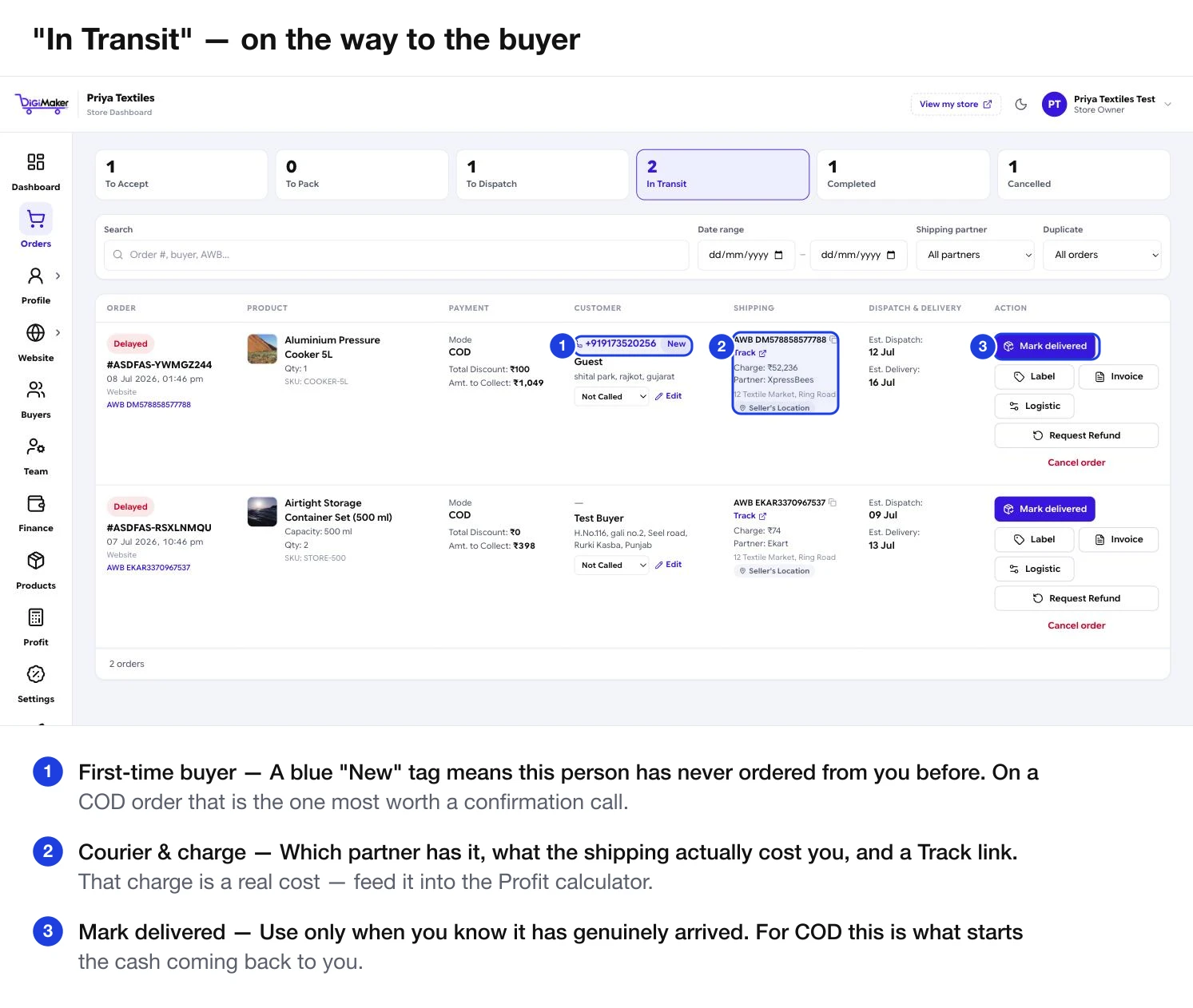
| Track | The parcel’s journey plus a public link for the buyer. | Once an AWB exists |
| Mark delivered | Confirms it reached the buyer. | In Transit |
| Request Refund | Asks Finance to send money back. | Always |
| Cancel order | Cancels and restocks the items. | Before delivery |
Accepting a new order
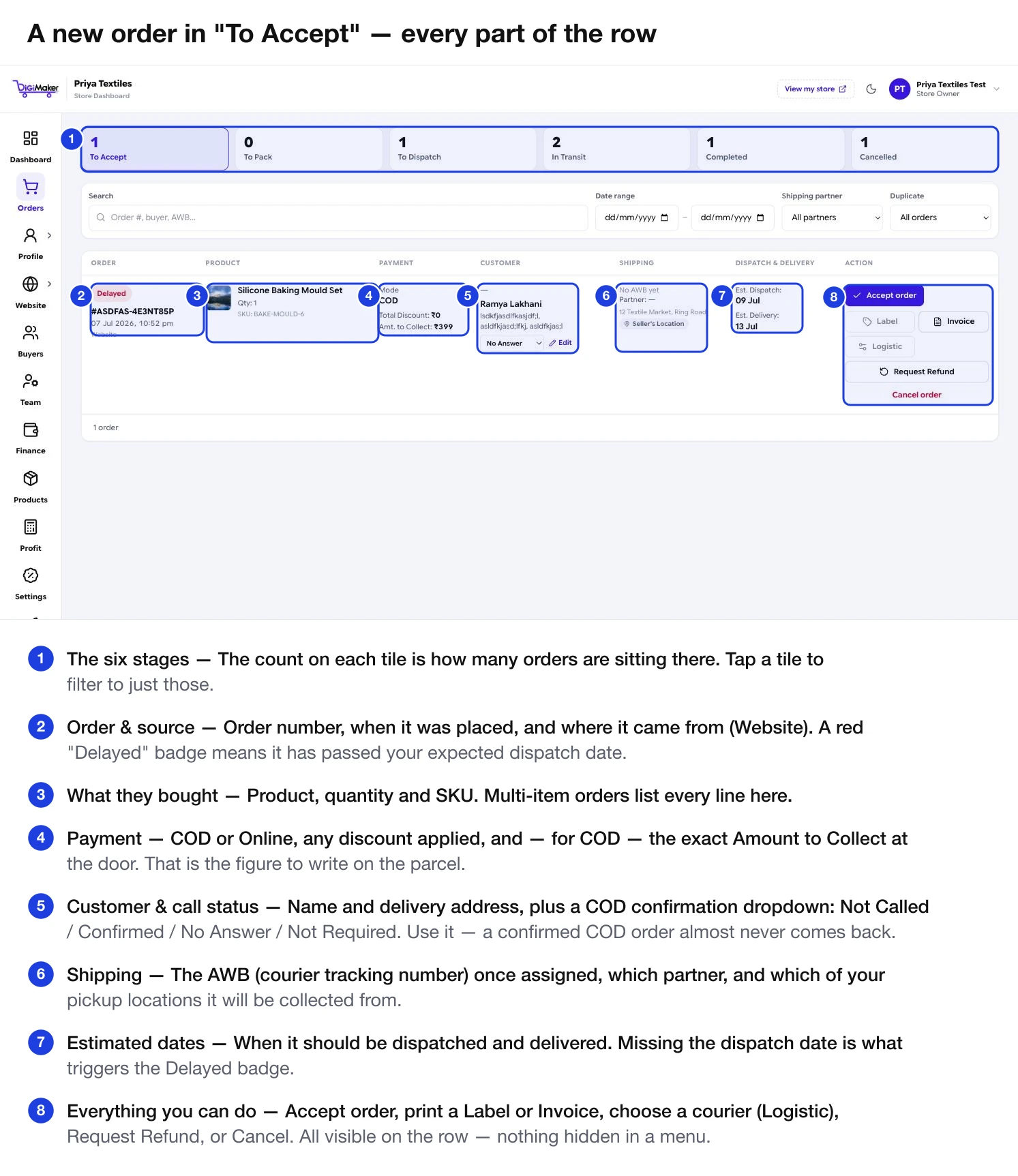
Before you press Accept, check three things:
Is the address complete?
It needs a house, flat or shop number. If not, press Edit next to the customer and fix it now — see below.
Is this a first-time COD buyer?
A blue New tag means they have never ordered before. Use the call-status dropdown — Not Called / Confirmed / No Answer / Not Required — and actually make the call. A confirmed COD order almost never comes back.
Is it a duplicate?
Use the Duplicate → Possible duplicates filter. The same person ordering the same thing twice within a short window is usually a double tap, not two orders.
Fixing the buyer’s details
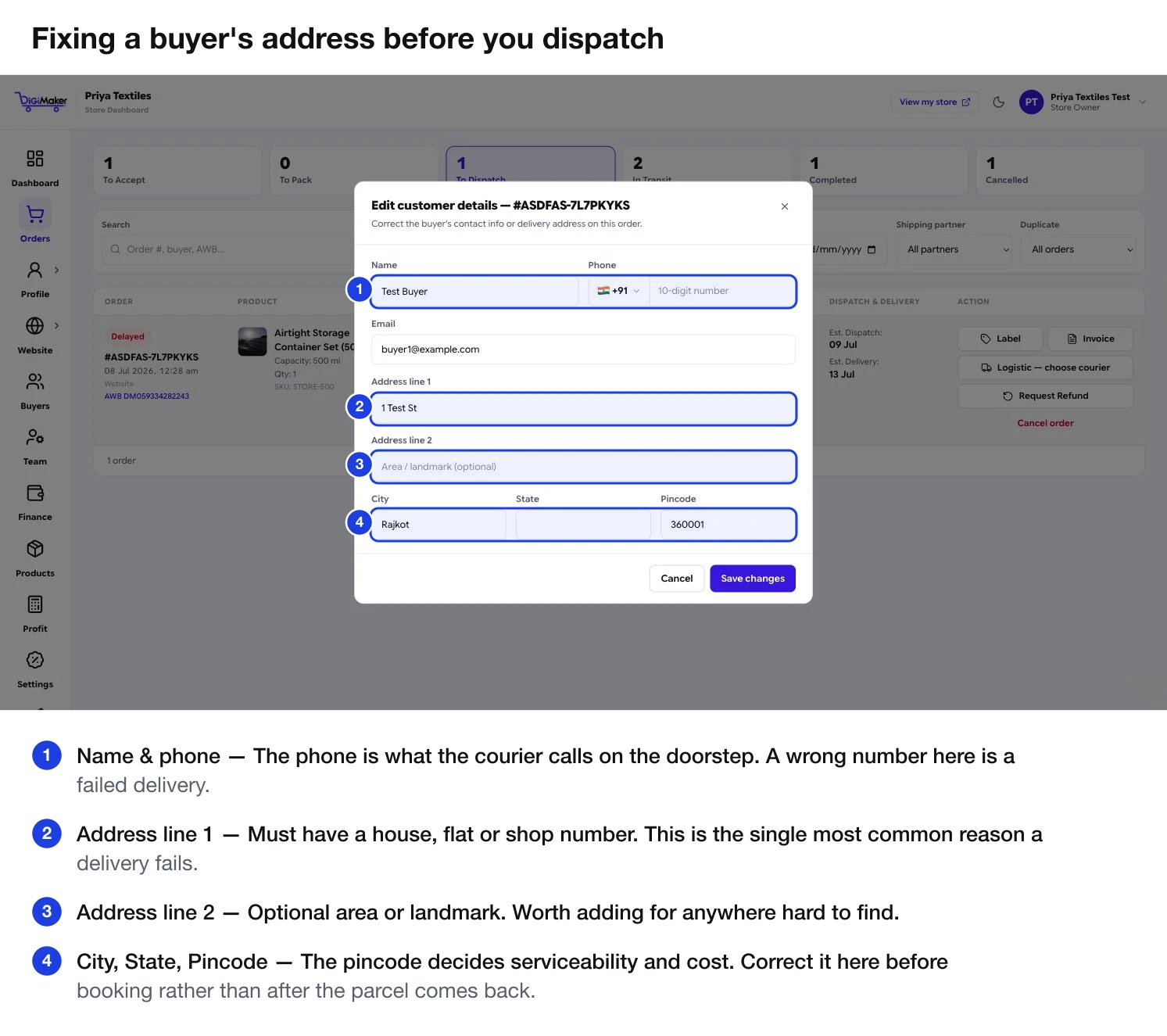
Edit next to the customer name opens this. Correct the phone (the courier calls it at the door), the address, or the pincode — the pincode decides both serviceability and cost.
Choosing a courier and dispatching
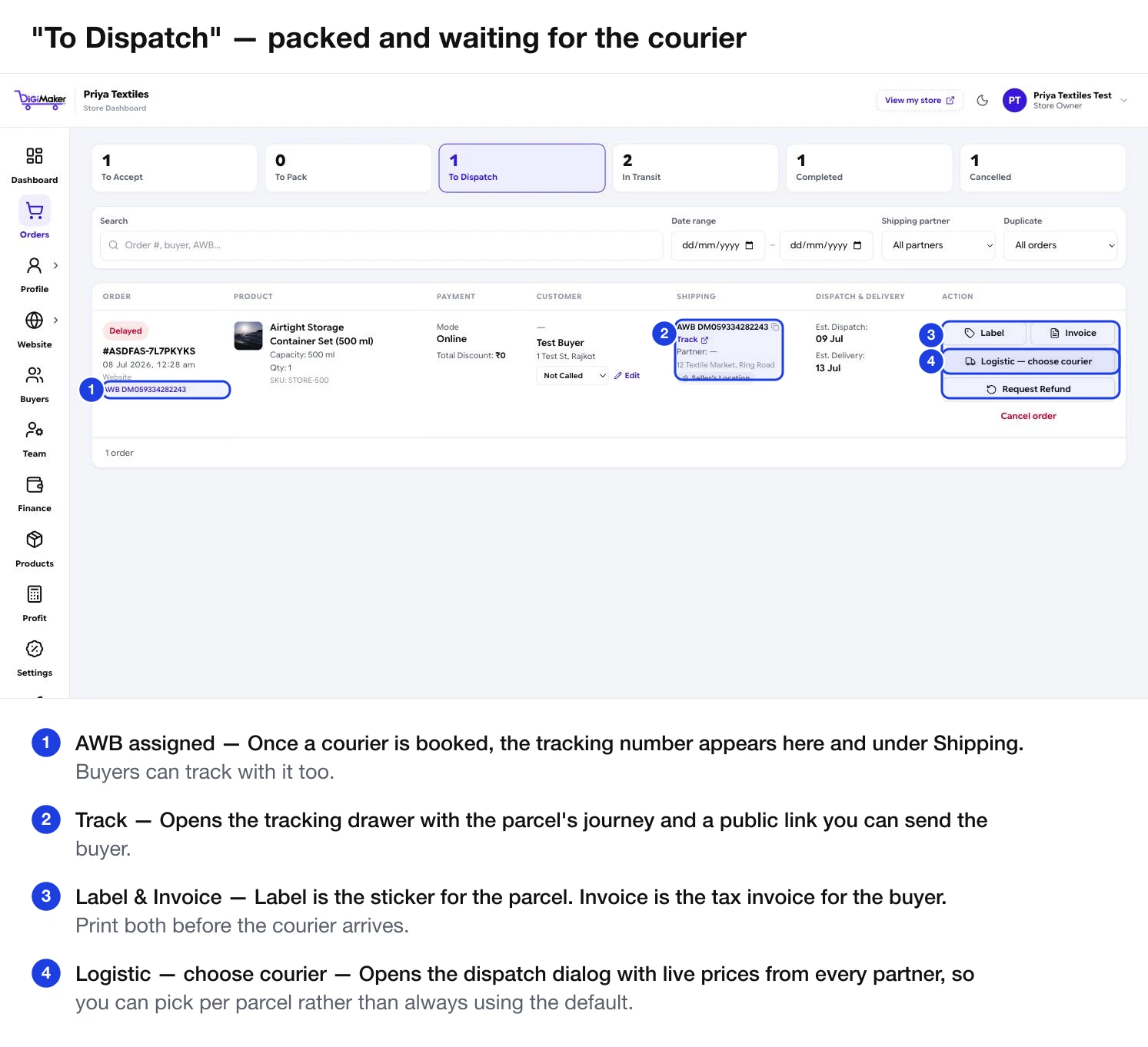
Press Logistic — choose courier to compare live prices for this exact parcel.
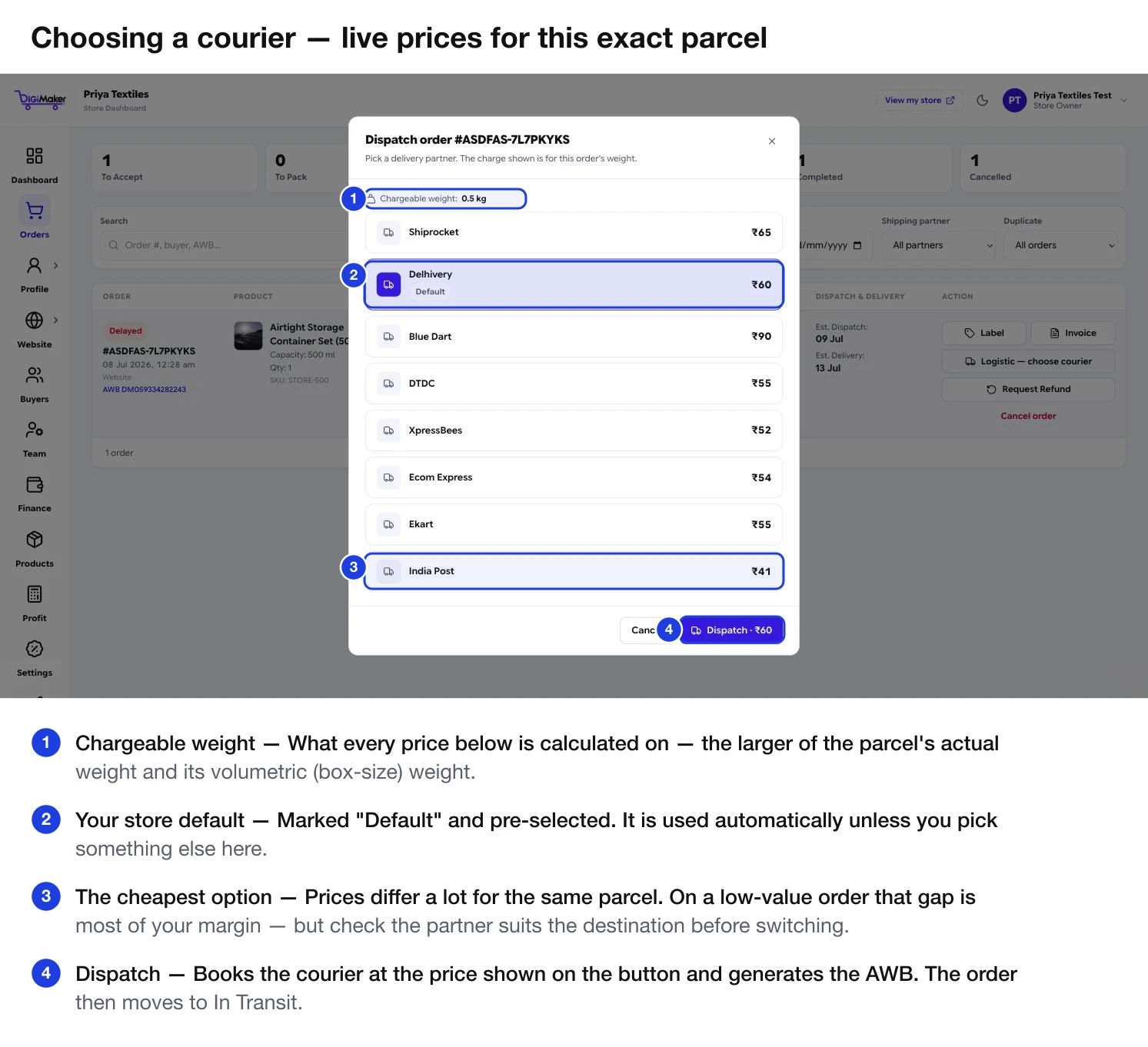
Pressing Dispatch books the courier, generates the AWB, and moves the order to In Transit.
Then print the Label (goes on the parcel) and the Invoice (goes to the buyer).
Tracking, and answering “where is my order?”
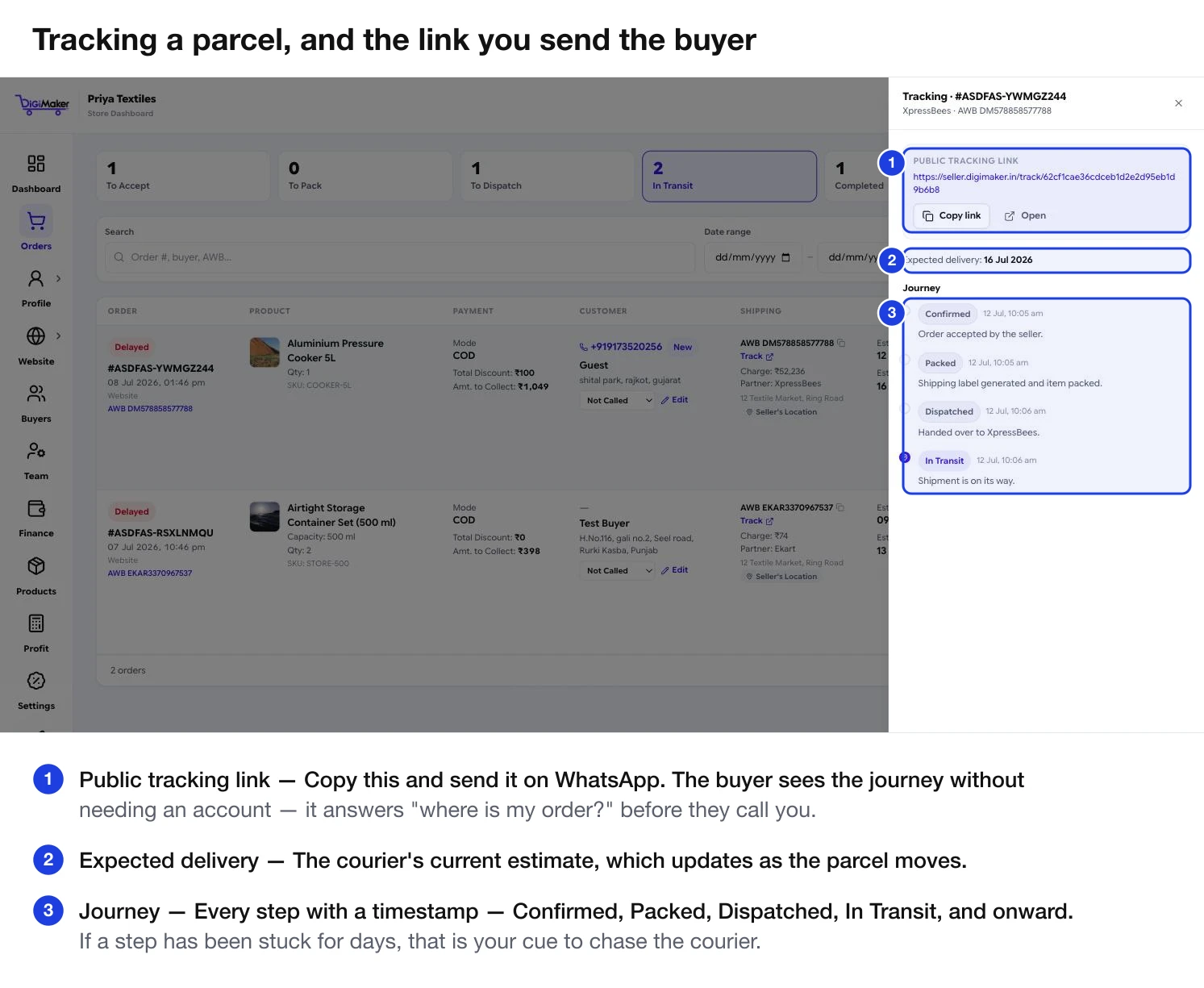
The public tracking link works without an account. Sending it on WhatsApp when you dispatch prevents most “where is my order?” calls before they happen.
The Journey lists every step with a timestamp. A step that has not moved in days is your cue to chase the courier.
When it genuinely arrives, press Mark delivered. For COD, that is what starts the cash coming back to you.
Requesting a refund
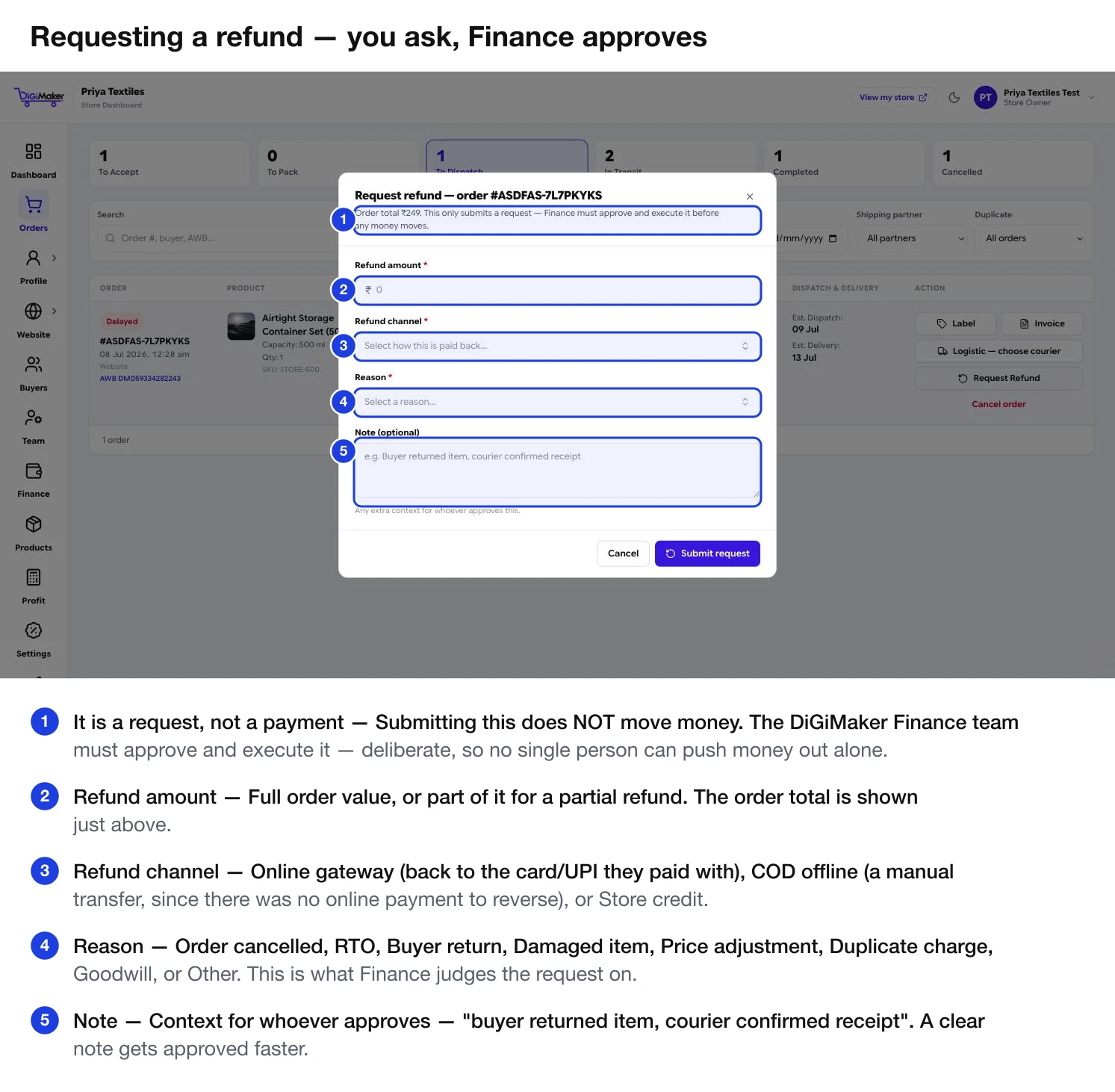
| Field | Options |
|---|---|
| Refund amount | Full order value or part of it. |
| Refund channel | Online gateway (back to the card/UPI used), COD offline (a manual transfer — there was no online payment to reverse), or Store credit. |
| Reason | Order cancelled · RTO · Buyer return · Damaged item · Price adjustment · Duplicate charge · Goodwill · Other. |
| Note | Context for the approver. A clear note gets approved faster. |
A request moves through requested → approved → processing → processed, or is rejected. See Refunds.
Cancelling an order
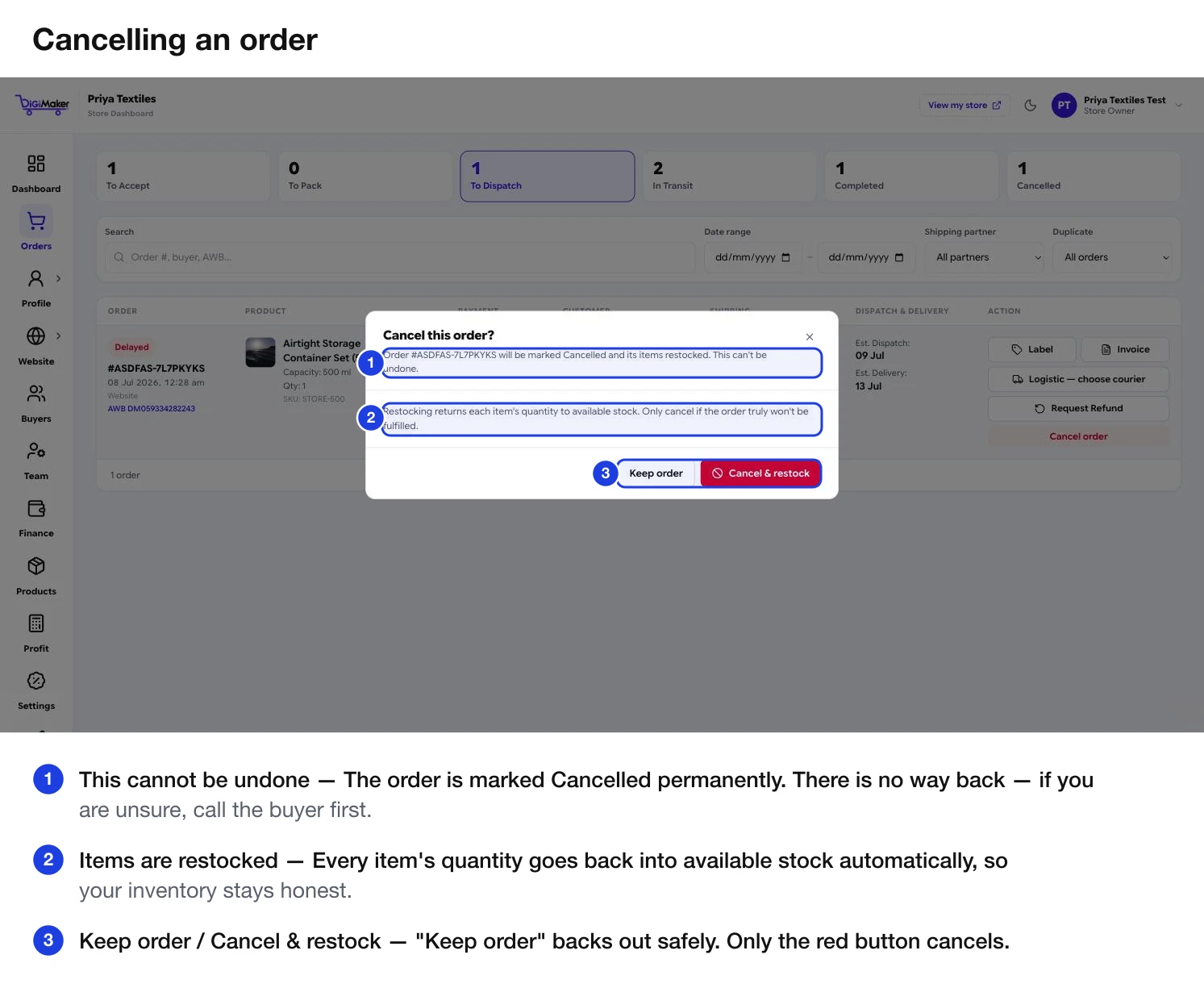
Cancelling does not refund money on its own. If the buyer already paid online, raise a refund request as well.